Use Heading Styles in Canvas & Accessibility Checker
Using Heading Styles and the Accessibility Checker in Canvas
Headings help students using screen readers navigate content efficiently and understand how information is organized. In Canvas, headings should be applied using heading tags in the Rich Content Editor rather than created by making text larger or bold. Heading levels should follow a logical order, and levels should not be skipped.
Tip
In Canvas, the page title is usually assigned as Heading 1 automatically. Start your content headings with Heading 2.
Learning Objectives
By the end of this tutorial, you should be able to:
- Explain why heading structure matters for accessibility.
- Apply heading tags correctly in the Canvas Rich Content Editor.
- Avoid skipping heading levels in page content.
- Use the Accessibility Checker to identify and fix common accessibility issues.
Chapter Overview
This tutorial explains how to apply heading styles in Canvas and how to use the Accessibility Checker in the Rich Content Editor to identify and fix common accessibility issues such as skipped heading levels, missing alt text, list problems, and low color contrast.
Note to Reader: Audio-described version of the video. Use player controls to play, pause, or adjust volume.
Why Heading Structure Matters
Headings allow students using screen readers to move through content efficiently. They also help all readers understand the structure of a page. Headings should follow a nested order:
- Heading 1 (H1): Page or document title
- Heading 2 (H2): Major sections
- Heading 3 (H3): Subsections within an H2 section
- Heading 4 (H4): Subsections within an H3 section
Do not skip heading levels. For example, an H2 should not be followed directly by an H4.
How to Add Heading Tags
In most Canvas content types, including pages, assignments, and discussions, the page title is automatically tagged as Heading 1. That means the first major section heading should usually be Heading 2.
- Open the editor. Navigate to the page, assignment, or discussion and select Edit.
- Select the text. Highlight the text you want to tag as a heading.
- Choose the heading level. Open the Style menu and select the appropriate heading level.
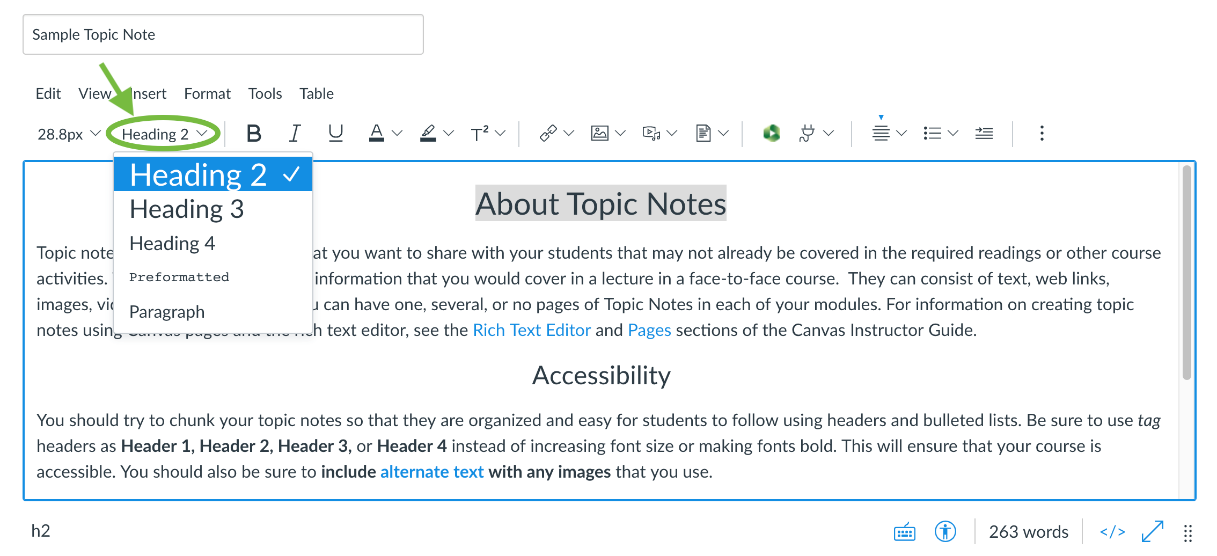
The Style menu in Canvas allows you to apply heading levels. Note. Screenshot by author from the Canvas Rich Content Editor. - Check the heading level. When your cursor is in the heading text, Canvas displays the level (such as h2).
Accessibility Check
Making text larger or bold does not create a heading. You must apply the heading level using the Style menu.
Formatting Is Not the Same as Structure
- You cannot create a heading by only making text larger or bold.
- Do not use heading styles just to change appearance.
- After applying a heading tag, you may adjust formatting if needed.
Using the Accessibility Checker
The Accessibility Checker in the Canvas Rich Content Editor helps detect common accessibility errors. It evaluates only content within the editor, so additional tools may be needed for files and external resources.
The checker can identify issues such as:
- Adjacent links that should be combined
- Headings that are too long
- Missing image alt text
- Alt text that uses a file name
- Alt text that is too long
- Insufficient contrast
- Lists not formatted correctly
- Skipped heading levels
- Missing table captions or headers
Checking Heading Issues
- Open the Accessibility Checker. Select the Accessibility Checker icon in the lower-right corner.
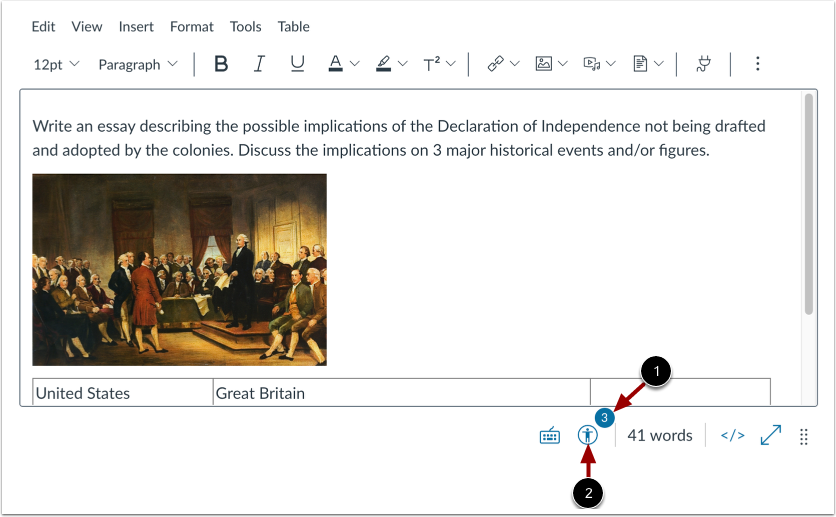
The Accessibility Checker icon opens accessibility review tools in the Rich Content Editor. Note. Screenshot by author from the Canvas Rich Content Editor. - Review issues. Select Next to move through issues until heading problems appear.
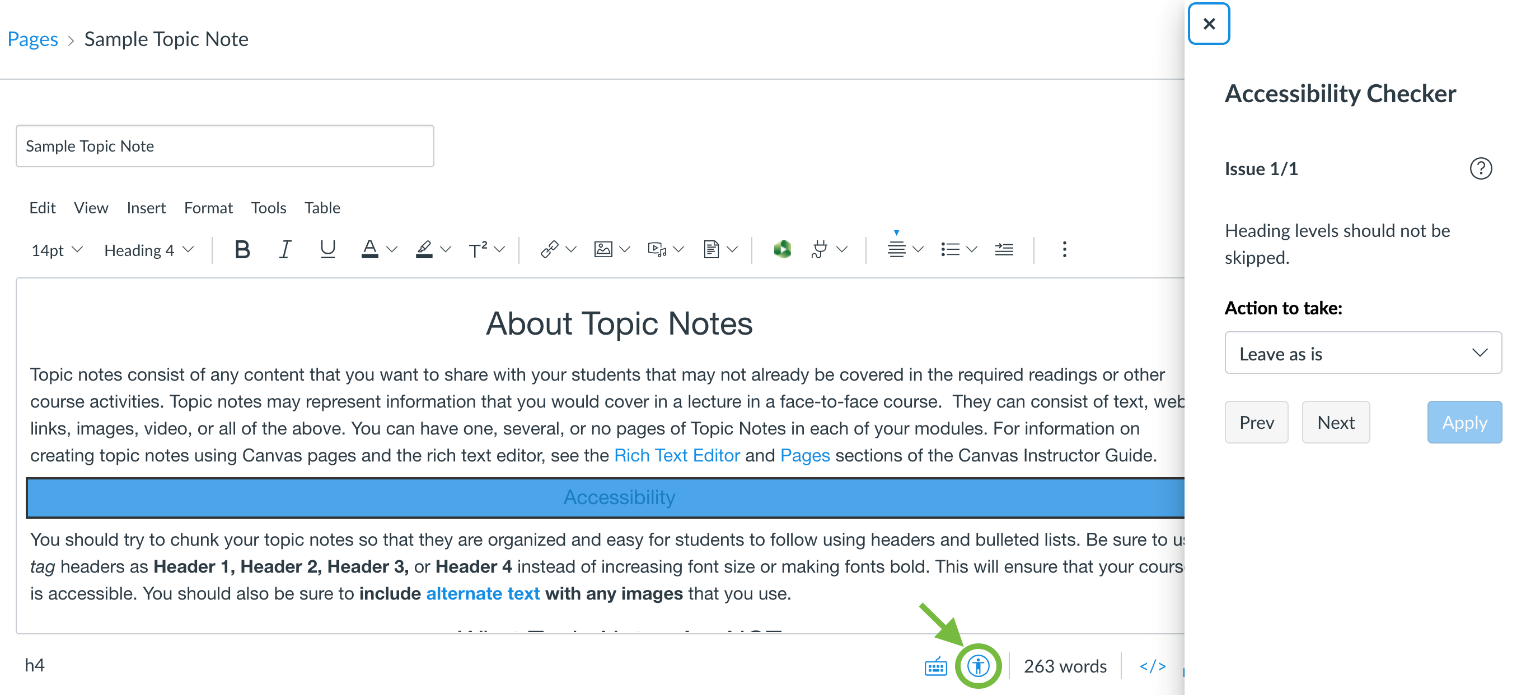
The checker flags skipped heading levels and suggests fixes. Note. Screenshot by author from the Canvas Accessibility Checker.
If a Heading 3 is skipped between Heading 2 and Heading 4, Canvas will flag the issue.
Viewing Issues in the Sidebar
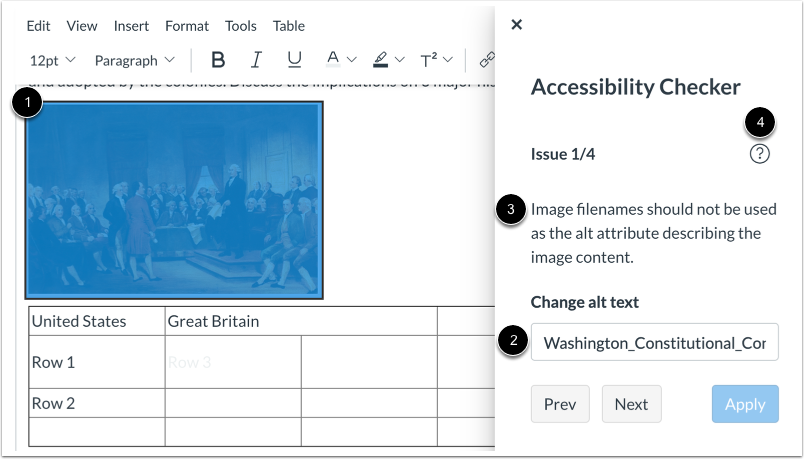
Reviewing Additional Issues
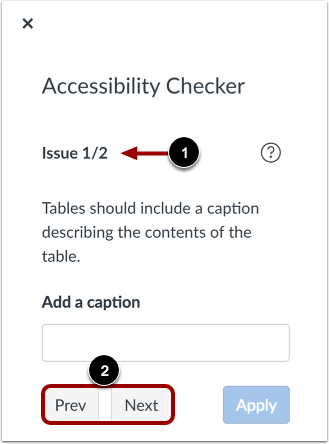
Applying a Fix
When an issue is identified, follow the recommended fix in the sidebar.
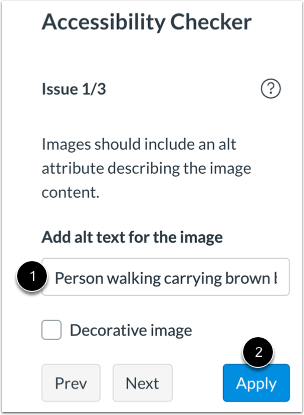
After applying a fix, Canvas moves to the next issue.
Confirming the Fix
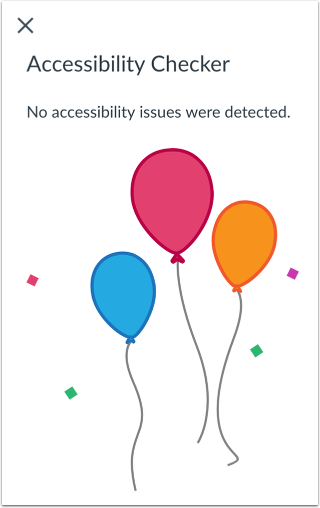
Instructor Note
The Accessibility Checker is helpful during content creation, but it does not replace a full review of files, links, and multimedia.
Chapter Summary
Using heading styles correctly helps organize Canvas content and supports screen reader navigation. The Accessibility Checker helps identify and correct issues such as skipped headings, missing alt text, and contrast problems before publishing.
Key Takeaways
- Canvas page titles are usually Heading 1 by default.
- Main sections should begin with Heading 2.
- Do not skip heading levels.
- Formatting alone does not create structure.
- The Accessibility Checker helps identify issues in the editor.
Practice Activity
Open a Canvas page or assignment in Edit mode. Apply heading tags to at least three sections using the Style menu. Then run the Accessibility Checker and correct any issues.
Further Reading
Licenses and Attribution
CC Licensed Content, Original
This educational material includes AI-generated content from ChatGPT by OpenAI. The original content created by Josh Hill, Neida Abraham, and Emiliana Olavarrieta from Hillsborough College is licensed under a Creative Commons Attribution-NonCommercial 4.0 International License (CC BY-NC 4.0).
All images in this textbook generated with DALL·E are licensed under the terms provided by OpenAI, allowing their use, modification, and distribution with appropriate attribution.
This chapter was created for an OER textbook and, unless otherwise noted, the original instructional text, screenshots created by the author, and original instructional materials in this chapter are included under the same license as the book.
Third-Party Platforms and Interfaces
This chapter includes screenshots of third-party software and web interfaces, including Canvas, for purposes of instruction, commentary, and accessibility training. These screenshots are used to document a workflow and remain subject to the terms, policies, and rights associated with the respective platforms.
Standards and Guidance
This chapter discusses heading structure and accessibility review practices in Canvas and refers readers to official Canvas guidance and higher education accessibility support materials.
References
- Emerson College Technology & Media. (n.d.). Creating accessible Canvas content.
- Instructure Community. (n.d.). How do I use the Accessibility Checker in the Rich Content Editor as an instructor?
Other Licensed Content
Headings in Canvas | Making Content Actually Accessible
Angie Teaches Canvas
License: Standard YouTube License.