Accessibility in Microsoft PowerPoint
Accessibility in Microsoft PowerPoint
Microsoft PowerPoint includes built-in tools and features that help create accessible presentations. This chapter explains how to use the Accessibility Checker, add alternative text, apply slide layouts, and follow best practices for accessible design.
Learning Objectives
By the end of this section, you should be able to:
- Use the PowerPoint Accessibility Checker to identify issues.
- Add meaningful alternative text to images.
- Apply built-in slide layouts to maintain structure.
- Create accessible links and readable slide content.
- Use PowerPoint panels to review structure and content.
Key Terms
- Accessibility Checker: A built-in PowerPoint tool that identifies accessibility issues in a presentation.
- Alternative text (alt text): A text description added to meaningful images so screen readers can communicate their purpose.
- Descriptive link text: Hyperlink text that clearly explains the destination or purpose of a link.
- Notes panel: A PowerPoint area where presenters can add notes that are not automatically read by screen readers.
- Outline panel: A view in PowerPoint used to review slide text, sequence, and title structure.
- Reading order: The sequence in which assistive technologies read slide content aloud.
- Slide layouts: Built-in PowerPoint templates that help preserve structure, headings, and logical content order.
Accessibility Checker
Microsoft PowerPoint includes a built-in tool that identifies accessibility issues in your presentation.
- Select File.
- Select Check for Issues.
- Choose Check Accessibility.
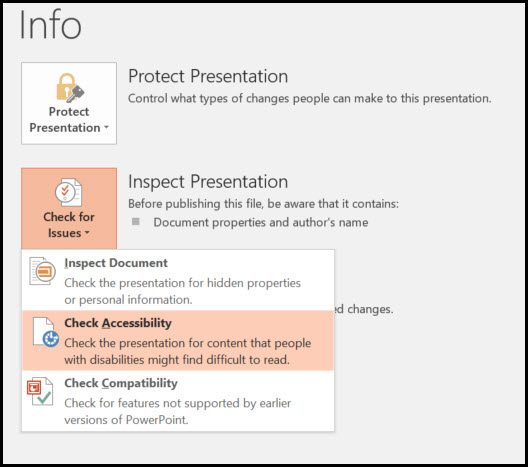
The Accessibility Checker task pane displays:
- Errors such as missing alternative text or slide titles.
- Warnings and tips such as caption usage or reading order.
- Instructions explaining how to fix identified issues.
Tip
Select a specific issue in the Accessibility Checker to view step-by-step guidance for fixing it.
Alternative Text for Images
Provide descriptive alternative text for all meaningful images. Screen readers announce this text, and it is preserved when exporting presentations to HTML or PDF.
- Right-click the image and select Format Picture.
- Select the Size & Properties icon.
- Choose Alt Text.
- Enter a description in the Description field.
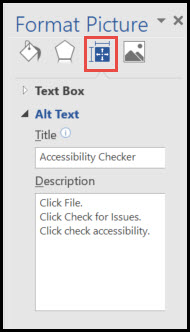
Accessibility Check
Alt text should describe the purpose of the image, not just what it looks like.
Slide Layouts
Using built-in slide layouts ensures proper heading structure, list formatting, and logical reading order for assistive technologies.
- Select Home > New Slide.
- Choose the desired layout.
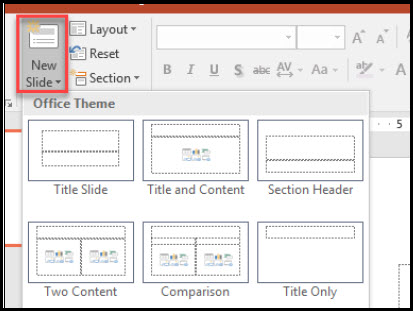
Links
PowerPoint automatically creates hyperlinks when a full URL is pasted onto a slide, but these may not provide meaningful context.
- Select the hyperlink.
- Right-click and choose Edit Link.
- Update the Text to Display field with descriptive text.
Accessibility Check
Avoid using raw URLs. Use descriptive link text that explains the destination.
Outline and Notes Panels
Outline Panel
- Select View > Outline View.
The Outline panel helps verify:
- Logical sequence of content
- Unique and meaningful slide titles
- Correct reading order
Notes Panel
- Select View > Notes.
The Notes panel allows you to add additional information for presenters.
Important Note
Screen readers do not automatically read Notes content. Do not place essential information only in the Notes panel.
Other Accessibility Tips
- Use sufficiently large fonts for presentations.
- Ensure strong color contrast between text and background.
- Do not rely on color alone to convey meaning.
- Avoid automatic slide transitions.
- Check reading order for text boxes.
- Ensure videos include captions.
- Provide transcripts for audio.
- Include descriptions for animations.
Chapter Summary
PowerPoint includes built-in tools that help identify and fix accessibility issues. Using the Accessibility Checker, adding alt text, applying slide layouts, and following best practices can significantly improve the accessibility of presentations.
Key Takeaways
- The Accessibility Checker helps identify issues in presentations.
- Alt text is essential for meaningful images.
- Built-in slide layouts support proper structure.
- Descriptive links improve usability.
- Accessibility requires both tools and thoughtful design.
Practice Activity
Open a PowerPoint presentation and run the Accessibility Checker. Fix at least three issues, including adding alt text, improving slide structure, or updating link text.
Further Reading
Licenses and Attribution
CC Licensed Content, Original
This educational material includes AI-generated content from ChatGPT by OpenAI. The original content created by Josh Hill, Neida Abraham, and Emiliana Olavarrieta from Hillsborough College is licensed under a Creative Commons Attribution-NonCommercial 4.0 International License (CC BY-NC 4.0).
All images in this textbook generated with DALL·E are licensed under the terms provided by OpenAI, allowing their use, modification, and distribution with appropriate attribution.
Third-Party Platforms and Interfaces
This chapter includes screenshots of third-party software and web interfaces, including Microsoft PowerPoint, for purposes of instruction, commentary, and accessibility training. These screenshots are used to document a workflow and remain subject to the terms, policies, and rights associated with the respective platforms.
Standards and Guidance
This chapter discusses accessibility practices for presentations and refers readers to Microsoft guidance, WebAIM recommendations, and W3C media accessibility resources.
References
- Microsoft. (n.d.). Make your PowerPoint presentations accessible to people with disabilities.
- OpenAI. (2022, November 30). Introducing ChatGPT.
- WebAIM. (n.d.). PowerPoint accessibility.
- World Wide Web Consortium, Web Accessibility Initiative. (n.d.). Making audio and video media accessible.
Other Licensed Content
How to create accessible PowerPoint presentations | Microsoft
Microsoft Helps
License: Standard YouTube License.