Using the Canvas Link Checker to Validate Links
Using the Canvas Link Checker to Validate Links
Learning Objectives
By the end of this chapter, you should be able to:
- Locate the Link Validator in Canvas course settings.
- Run the link validation process for a course.
- Interpret the list of broken or invalid links.
- Edit course content to correct broken links.
- Rerun validation to confirm that issues have been resolved.
Key Terms
- Link Validator: A Canvas tool that scans course content and identifies broken or invalid links.
- Broken link: A hyperlink that no longer leads to the intended destination.
- Unpublished content: Course material that exists in Canvas but is not yet visible to students.
Chapter Overview
This chapter explains how to use the built-in Link Validator in Canvas to check course links, review broken link reports, update affected content, and rerun validation after making corrections.
Why Link Validation Matters
Broken links can prevent students from reaching readings, assignments, media, or support materials. Checking links regularly helps maintain course quality and improves the learning experience for all users, including students who rely on predictable navigation and accessible digital content.
Note to Reader: Audio-described version of the video. Use player controls to play, pause, or adjust volume.
Accessibility Check
Working links are part of accessible course design. A meaningful link still creates a barrier if it leads to missing or unpublished content.
Step-by-Step: Validate Links in Canvas
Step 1: Open the Course Settings
- Open the Canvas course.
- Select Settings from the course navigation menu.
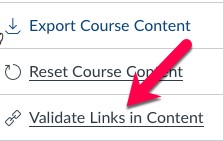
Step 2: Open the Link Validator
From the menu on the right side of the Settings page, select Validate Links in Content.
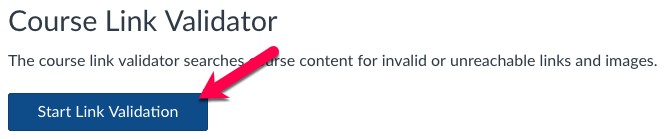
Step 3: Start the Validation Process
Select Start Link Validation to begin scanning the course for invalid links.
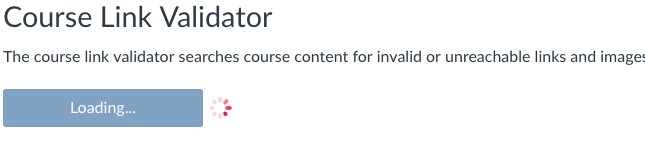
Step 4: Wait for Canvas to Check the Links
Canvas will begin validating links across the course. If the course contains many links, this process may take a short time. While the scan is running, the button displays a loading message.
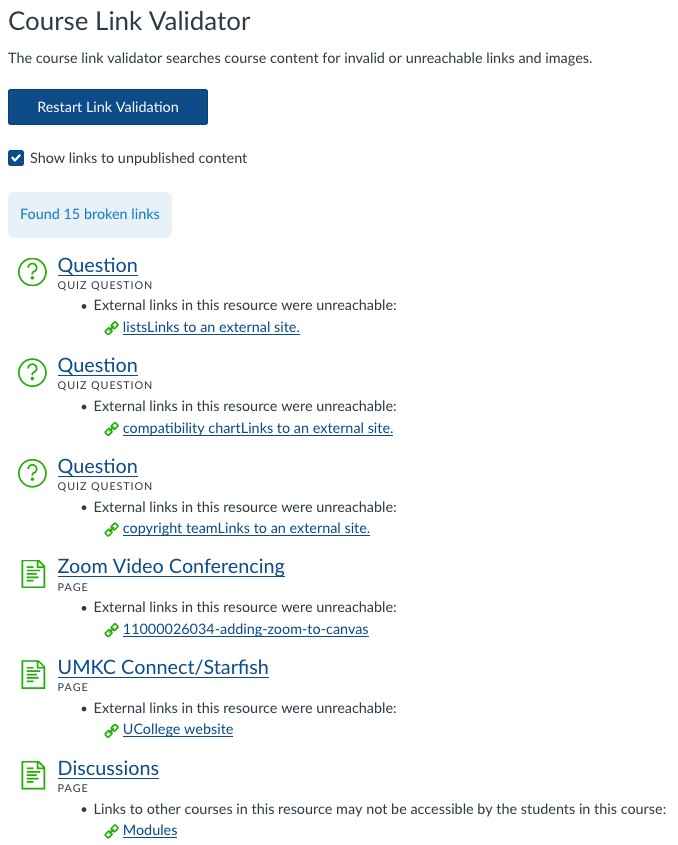
Step 5: Review Broken Links
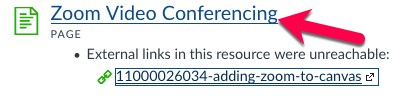
After the scan finishes, review the list of broken links, if any are found. Canvas displays the number of invalid links, the name of the affected content item, and the broken links associated with that item.
By default, the option to show links to unpublished content is selected, so broken links in unpublished materials may also appear in the results.
Step 6: Edit the Affected Content
Select the name of a content item in the results to open it and correct the broken links.
Step 7: Run the Validator Again
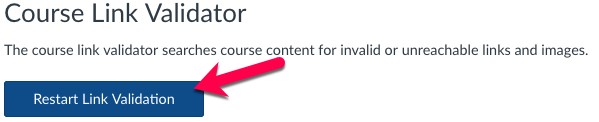
After updating the course content, return to the Link Validator page and select Restart Link Validation. This refreshes the report and shows whether your edits resolved the issues.
Tips for Maintaining Healthy Course Links
- Check links after copying content from another course shell.
- Validate links before publishing a new course or module.
- Review unpublished content as well as published content.
- Use meaningful link text so students understand where a link should lead.
- Rerun validation after major course revisions.
Instructor Tip
Link validation works best as part of a final course review that also checks headings, image alt text, tables, and document accessibility.
Chapter Summary
The Canvas Link Checker is a simple but important tool for locating broken links in course content. By opening course settings, running the validator, reviewing flagged items, and correcting affected pages, instructors can improve course usability and reduce access barriers for students.
Key Takeaways
- The Link Validator is available from Settings in a Canvas course.
- It scans course content for invalid or broken links.
- Results identify the affected content item and related broken links.
- Broken links should be corrected directly in the linked content item.
- After edits are made, validation should be run again.
Review Questions
- Where do you find the Link Validator in a Canvas course?
- What information does Canvas provide when broken links are found?
- Why might unpublished content appear in the validation results?
- What should you do after fixing broken links in course content?
- How does link validation support accessibility?
Practice Activity
Open a Canvas course and run the Link Validator. Review any reported issues, correct one broken link in a page or assignment, and then rerun the validator to confirm that the issue has been resolved.
Further Reading
- How do I validate links in a course?, Instructure Community
Licenses and Attribution
CC Licensed Content, Original
This educational material includes AI-generated content from ChatGPT by OpenAI. The original content created by Josh Hill, Neida Abraham, and Emiliana Olavarrieta from Hillsborough College is licensed under a Creative Commons Attribution-NonCommercial 4.0 International License (CC BY-NC 4.0).
All images in this textbook generated with DALL·E are licensed under the terms provided by OpenAI, allowing their use, modification, and distribution with appropriate attribution.
Third-Party Platforms and Interfaces
This chapter includes screenshots of third-party software and web interfaces, including Canvas, for purposes of instruction, commentary, and accessibility training. These screenshots are used to document a workflow and remain subject to the terms, policies, and rights associated with the respective platforms.
Standards and Guidance
This chapter discusses broken-link checking and course maintenance in Canvas and refers readers to official Canvas guidance for validating course links.
References
- Instructure Community. (n.d.). How do I validate links in a course?
- OpenAI. (2022, November 30). Introducing ChatGPT.
Other Licensed Content
Using Canvas’ Link Validator Tool
College of the Canyons Online Education
License: Standard YouTube License.