Blackboard Ally
Blackboard Ally
Learning Objectives
By the end of this chapter, you should be able to:
- Explain the purpose of Blackboard Ally in supporting accessible course design.
- Interpret Ally accessibility indicators and scores.
- Identify ways to improve accessibility in digital course materials.
- Recognize the limitations of automated accessibility tools.
- Describe how students access alternative content formats.
Key Terms
- Accessibility Score: A percentage indicating how accessible a file is based on established standards.
- Alternative Formats: Automatically generated versions of content (e.g., audio, HTML, ePub) to support diverse learning needs.
- OCR (Optical Character Recognition): Technology that converts scanned images of text into readable, searchable content.
- WCAG 2.1 Level AA: Accessibility guidelines for making web content usable by people with disabilities.
Chapter Overview
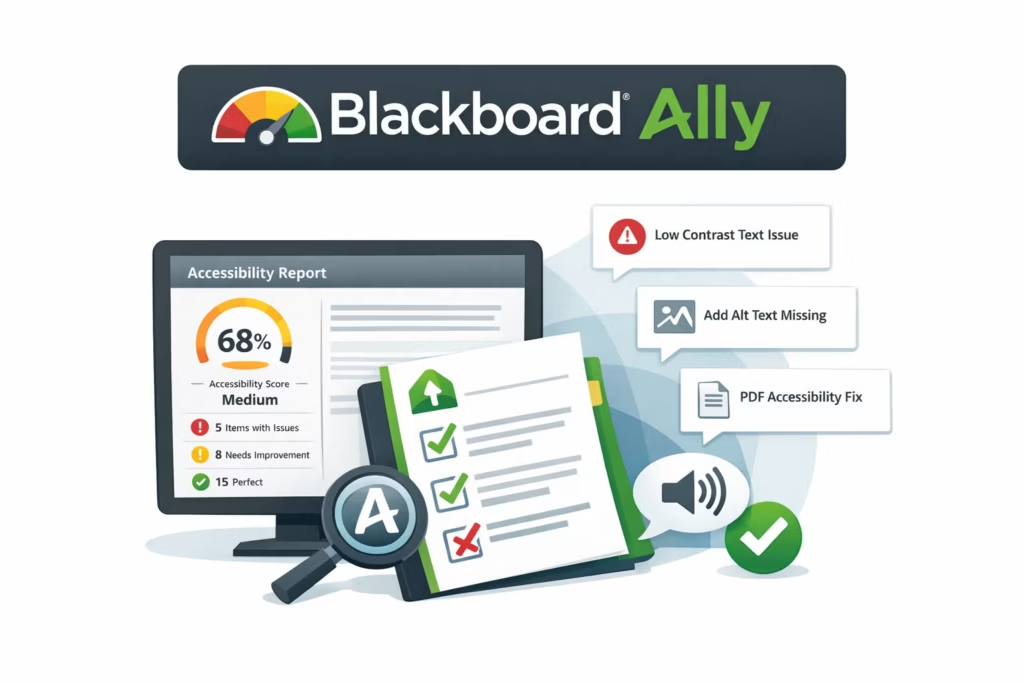
Blackboard Ally is an accessibility tool that can be integrated into Canvas that helps instructors create more inclusive course materials and provides students with flexible ways to access content. This chapter explains how Ally works, how to interpret accessibility scores, its limitations, and how both instructors and students benefit from its features.
Blackboard Ally helps institutions evaluate and improve the accessibility of digital course content. It provides instructors with actionable feedback and gives students the ability to access materials in formats that best meet their needs.
What is Blackboard Ally?
Instructor Tip
Accessibility improvements benefit all learners, not just those with documented disabilities.
Improving Accessibility with Ally
- Integrates directly within Canvas courses.
- Automatically generates alternative formats such as audio, HTML, and ePub.
- Provides step-by-step feedback to instructors.
- Generates institutional reports to track accessibility progress.
How Blackboard Ally Works
- Scans uploaded files using an accessibility checklist.
- Evaluates content against WCAG 2.1 Level AA and Section 508 standards.
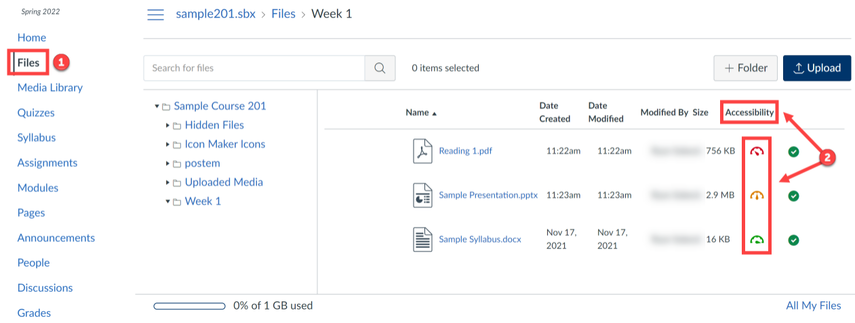
- Displays an accessibility score and indicator next to each file.
The Instructor Experience
Selecting the accessibility indicator opens a feedback panel that displays the file’s accessibility score and identifies issues. The panel also provides step-by-step guidance for remediation.
Accessibility Note
Ally uses both color and directional arrows to ensure information is not conveyed by color alone.
- Red (left arrow): Low accessibility (0–33%).
- Yellow (up arrow): Medium accessibility (34–66%).
- Green (right arrow): High accessibility (67–100%).
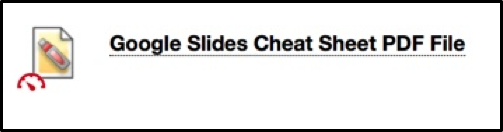
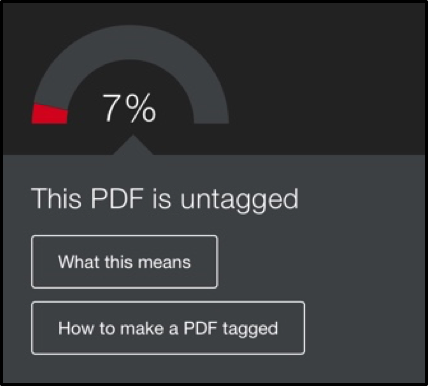
After making improvements, instructors can upload a revised file. Improved files typically receive higher accessibility scores.
The Student Experience
Students can download alternative formats directly from Canvas without needing instructor assistance.
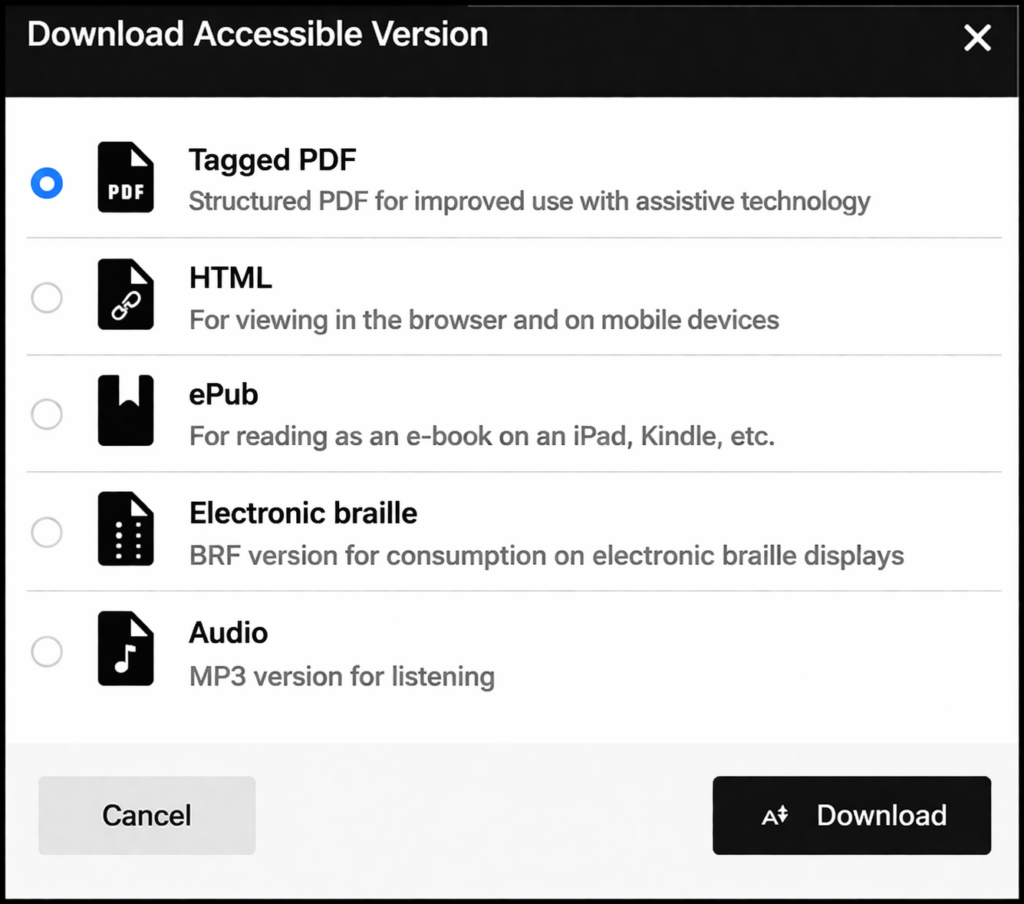
Available formats may include:
- Tagged PDF
- HTML
- ePub
- Electronic braille
- Audio
Keyboard users can access these options using the Tab key and activating selections with Enter or Space.
Determining Accessibility Scores
Factors That Influence the Score
- OCR is applied to scanned documents.
- Proper headings and structure are used.
- The document language is defined.
- Images include descriptive alternative text.
- Videos include accurate captions.
How to View an Accessibility Score
- Open Files in your Canvas course.
- Locate the accessibility indicator in the Accessibility column.
- Select the indicator to open the Ally report.
Remediation Strategies
- Follow guided steps within the feedback panel.
- Download an alternative format and revise it.
- Re-upload improved versions of documents.
Limitations of Blackboard Ally
- Cannot determine whether alternative text is meaningful or accurate.
- Cannot verify caption accuracy or audio descriptions.
- Cannot detect meaning conveyed only through color.
- Cannot evaluate meaningful link text.
- Cannot assess external tools or linked content.
- Cannot evaluate content within some tools such as New Quizzes.
Important Note
A high accessibility score does not guarantee that content is fully accessible.
Additional Notes and Tips
PowerPoint (PPTX) Display Issue
Ally may incorrectly flag contrast issues if the viewing window is too narrow. Expanding the window can resolve this.
Fixing Color Contrast in Images
AI tools can help improve image contrast. After updating an image, remember to reapply meaningful alternative text. When possible, upload higher-resolution images and display them at a larger size in Pressbooks to reduce blurriness caused by scaling small images.
Handwritten Math in PDFs
Use AI to OCR handwritten math into readable text and place it into accessible formats such as Canvas pages.
Recommended Language
Use the term “fully accessible” rather than relying solely on an Ally score.
Accessibility Check
- Headings follow a logical hierarchy.
- Images include meaningful alt text.
- Links use descriptive text.
- Manual review complements automated tools.
- Images are displayed at an adequate size for readability.
Chapter Summary
Blackboard Ally supports accessible teaching by providing automated feedback and alternative formats. However, instructors must apply critical judgment and manual checks to ensure content is fully accessible. Clear screenshots, improved image contrast, and appropriate image sizing in Pressbooks can also make accessibility guidance easier for learners to interpret.
Key Takeaways
- Blackboard Ally evaluates course content and provides feedback.
- Accessibility indicators help prioritize improvements.
- Students benefit from flexible formats.
- Ally cannot replace human review.
- Focus on fully accessible content, not just scores.
- Displaying screenshots at a larger size can improve readability in Pressbooks.
Review Questions
- What is the primary purpose of Blackboard Ally?
- What do the accessibility indicator colors represent?
- What are two limitations of Blackboard Ally?
- Why is a 100% score not a guarantee of full accessibility?
- How can instructors improve accessibility beyond Ally’s recommendations?
Practice Activity
Locate a file in Canvas with an accessibility score. Review the Ally feedback and identify at least two improvements. Then, identify one accessibility issue Ally might not detect and explain how you would address it. As part of your review, consider whether any screenshots or images are too small or blurry to support understanding.
Further Reading
Licenses and Attribution
CC Licensed Content, Original
This educational material includes AI-generated content from ChatGPT by OpenAI. The original content created by Josh Hill, Neida Abraham, and Emiliana Olavarrieta from Hillsborough College is licensed under a Creative Commons Attribution-NonCommercial 4.0 International License (CC BY-NC 4.0).
All images in this textbook generated with DALL·E are licensed under the terms provided by OpenAI, allowing their use, modification, and distribution with appropriate attribution.
Third-Party Platforms and Interfaces
This chapter includes screenshots of third-party software and web interfaces, including Canvas and Blackboard Ally, for purposes of instruction, commentary, and accessibility training. These screenshots are used to document a workflow and remain subject to the terms, policies, and rights associated with the respective platforms.
Standards and Guidance
This chapter discusses accessibility practices that align with WCAG 2.1 and Section 508 and refers readers to institutional and vendor guidance for using Blackboard Ally in Canvas.
References
- Anthology. (2026, February 26). About Ally and accessibility.
- Penn State. (n.d.). Anthology Ally instructor quickstart.
- U.S. General Services Administration. (n.d.). Section 508 of the Rehabilitation Act, as amended.
- World Wide Web Consortium. (2025, May 6). Web Content Accessibility Guidelines (WCAG) 2.1.
Other Licensed Content
Anthology Ally Demo
Blackboard Co
License: Standard YouTube License.