Creating Accessible YouTube Captions and Transcripts with AI
Creating Accessible YouTube Captions and Transcripts with AI
Accurate captions and transcripts are essential for making video content accessible to people who are deaf or hard of hearing and to many other learners. While YouTube often generates automatic captions, these captions frequently contain punctuation errors, spelling mistakes, and missing context. This tutorial explains how to review YouTube captions and use AI tools to correct and format transcripts for accessibility. Section 508.Gov provides guidelines on creating proper captions.
Learning Objectives
By the end of this tutorial, you should be able to:
- Identify whether a YouTube video contains auto-generated captions.
- Extract caption text from YouTube.
- Use AI tools to correct punctuation and spelling errors in transcripts.
- Create accessible transcripts that accompany educational videos.
Key Terms
- Captions: Text synchronized with video representing spoken dialogue and sounds.
- Transcript: A text version of spoken audio.
- Auto-generated captions: Captions created automatically that often require editing.
- Audio description: Narration describing important visual elements.
Chapter Overview
This chapter demonstrates how to extract captions from a YouTube video, correct them using an AI tool such as ChatGPT, and prepare a clean transcript that can be shared alongside the video in learning environments such as Canvas or Pressbooks.
Accessible Caption Workflow
Tip
Auto-generated captions can be a helpful starting point, but they often contain errors and should always be reviewed before being shared with students. Faculty may use YouTube videos; however, to meet WCAG 2.1 Level AA requirements, captions must be accurate. If captions are not accurate, faculty should correct them, select an alternative video with accurate captions, or provide an accessible equivalent.
Step-by-Step Instructions
- Check if captions are auto-generated. Open the YouTube video and click the CC button. If the captions indicate (Auto-generated), they should be reviewed and corrected.
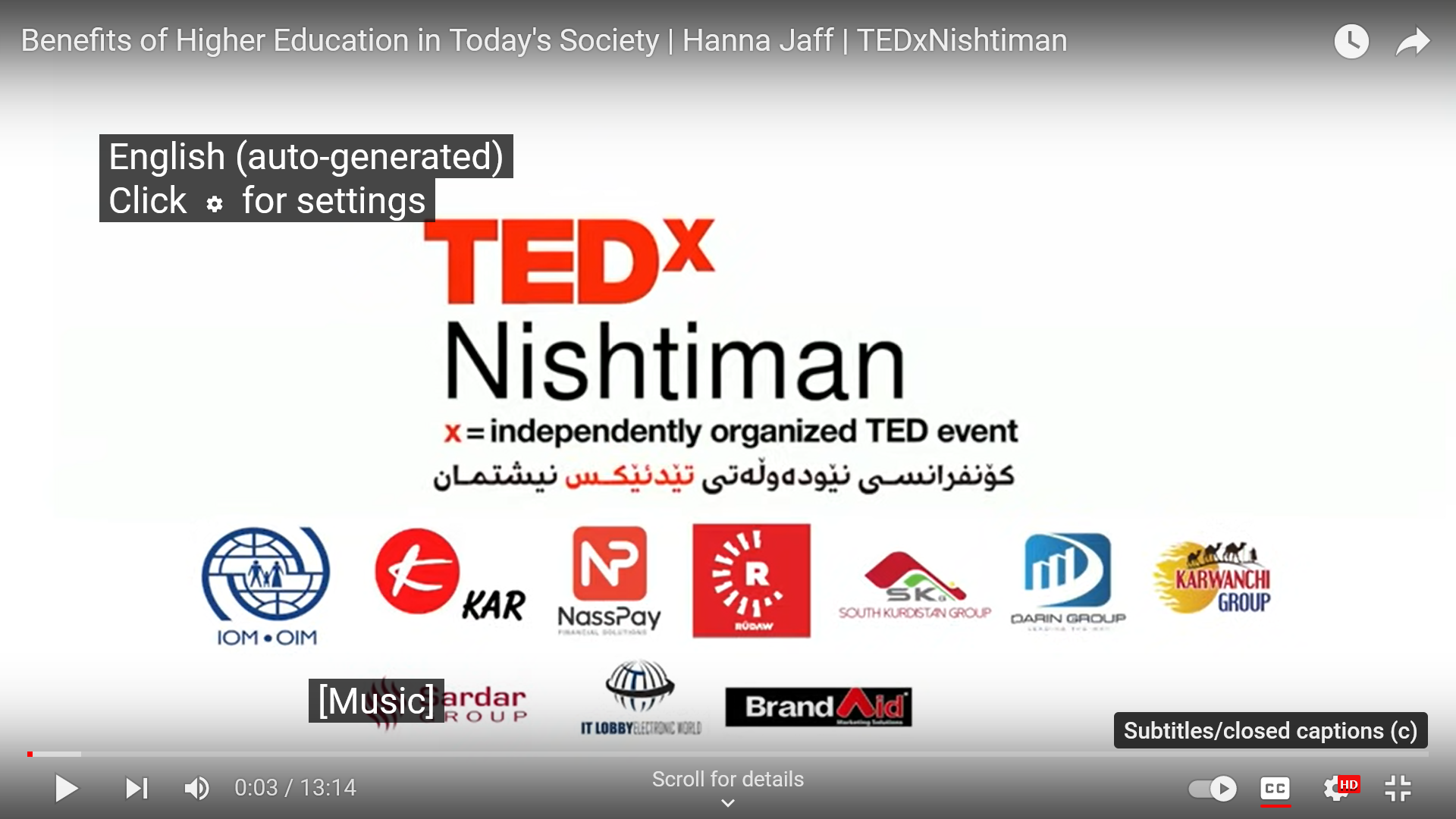
The CC button enables captions in YouTube videos. Note. Screenshot by author from the YouTube interface. - Open the transcript panel. Go to YouTube, click the three-dot menu, and select Show transcript. If no captions exist, try the YouTube Transcript Generator.
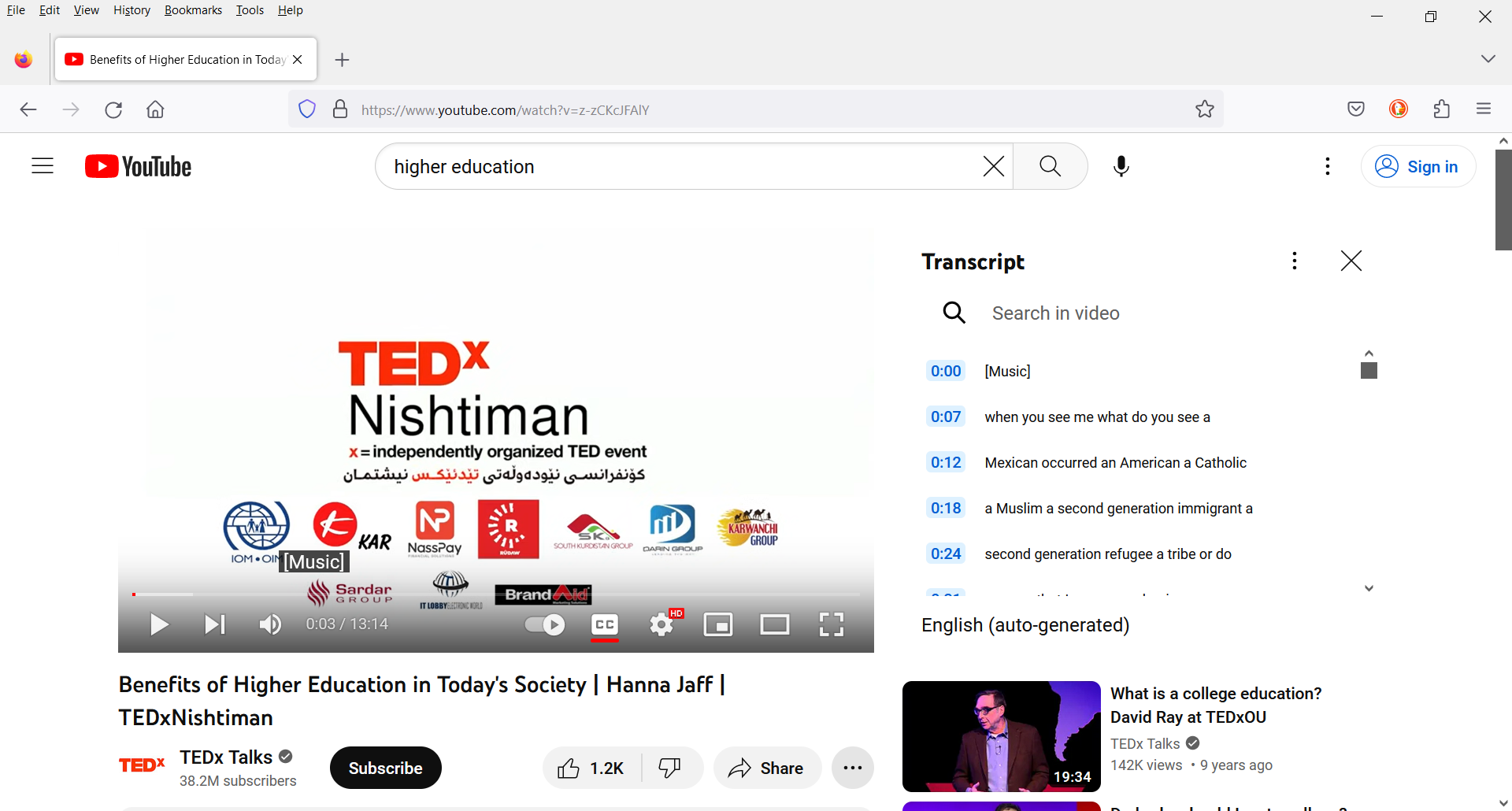
The transcript panel displays caption text that can be copied. Note. Screenshot by author from the YouTube interface. - Copy the transcript text. Select and copy the transcript. For long videos, copy in smaller sections.
- Paste captions into an AI tool. Open ChatGPT or another AI assistant and paste the captions.
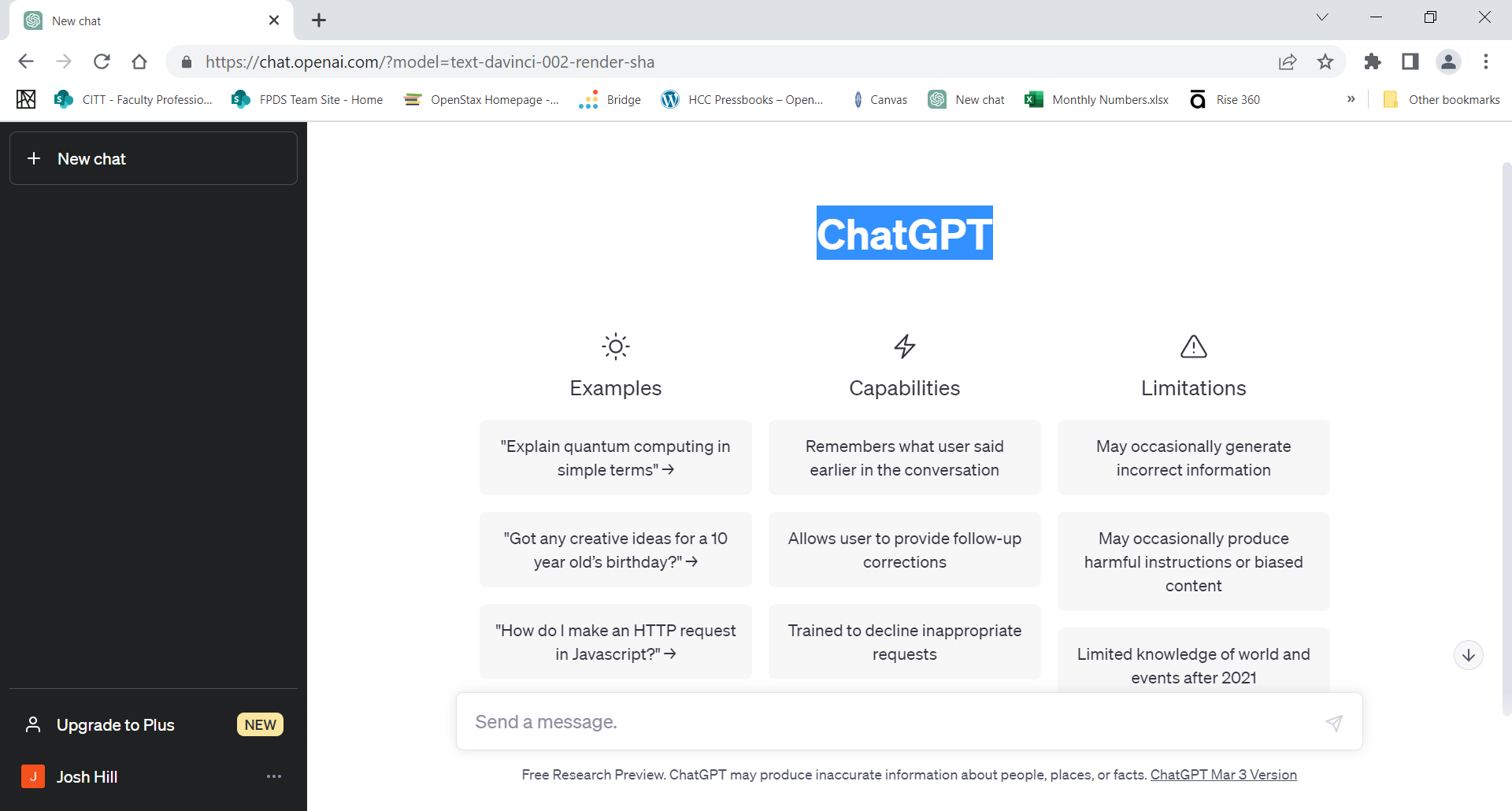
Caption text can be pasted into an AI tool for editing. Note. Screenshot by author from the ChatGPT interface. - Ask the AI to correct the transcript. Example prompt: “Fix punctuation and spelling errors and convert into a readable transcript.” Process about 2–3 minutes at a time.
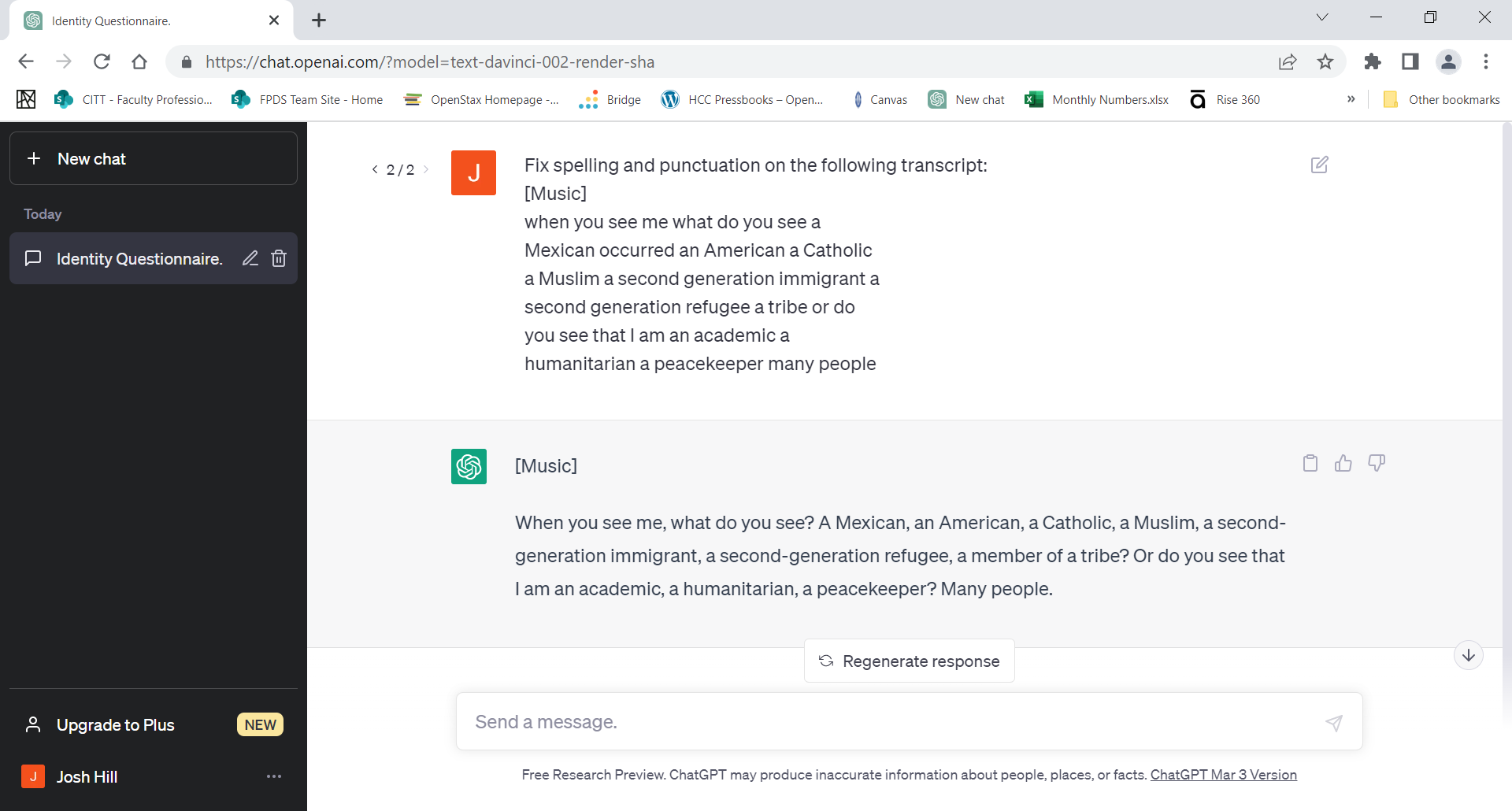
AI tools can quickly correct punctuation and formatting. Note. Screenshot by author from the ChatGPT interface. - Paste into a document. Copy the corrected transcript into a Word document.
- Repeat until complete. Continue processing until the full transcript is finished.
- Remove unwanted formatting. Use the Clear All Formatting tool or paste into Notepad first.
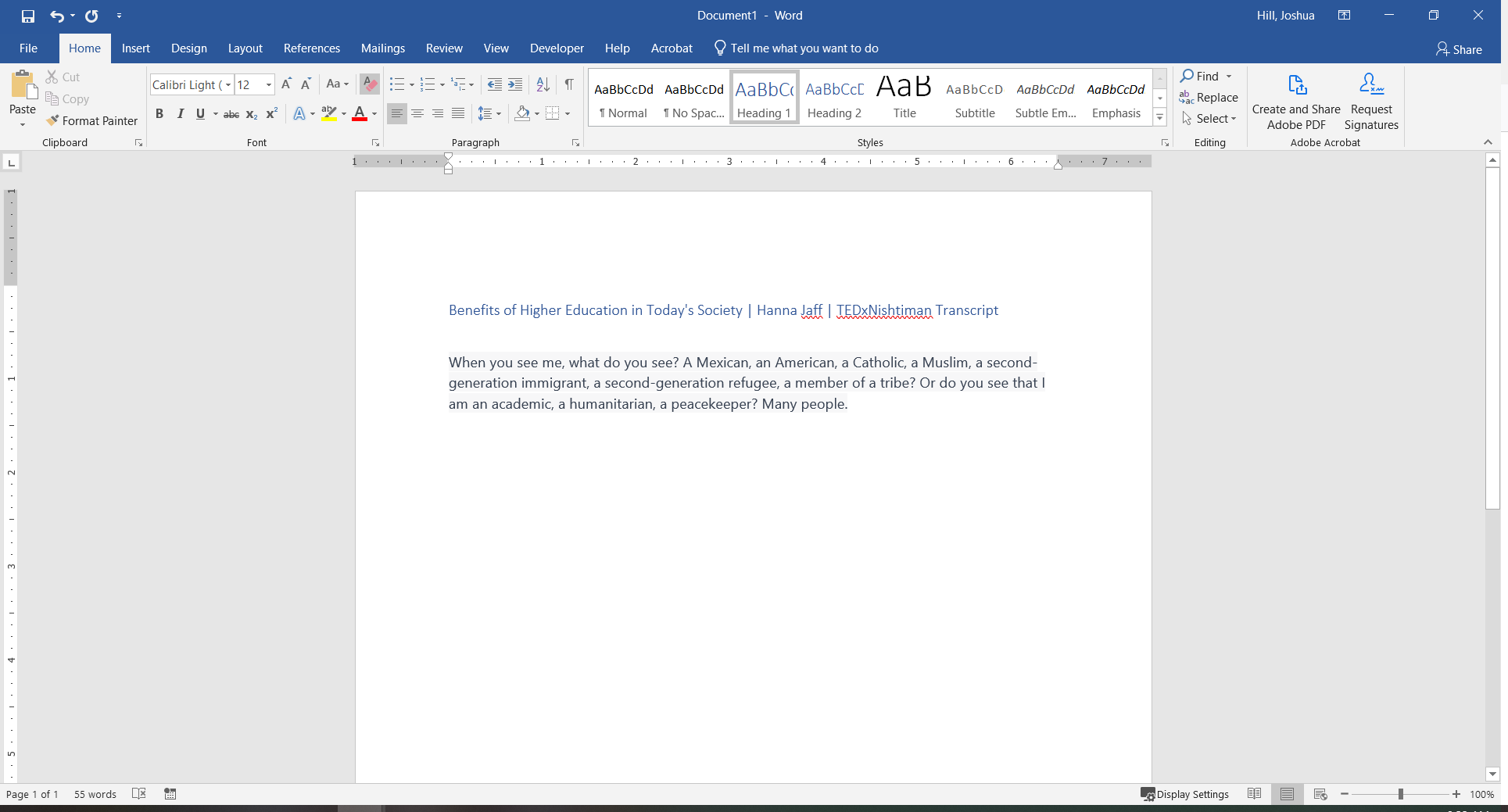
The Clear All Formatting tool removes unwanted styling. Note. Screenshot by author from Microsoft Word. - Add a clear transcript title. Use Heading 1. Example: Video Transcript: Introduction to Digital Accessibility.
- Review the transcript carefully. Watch the video while reading to ensure accuracy.
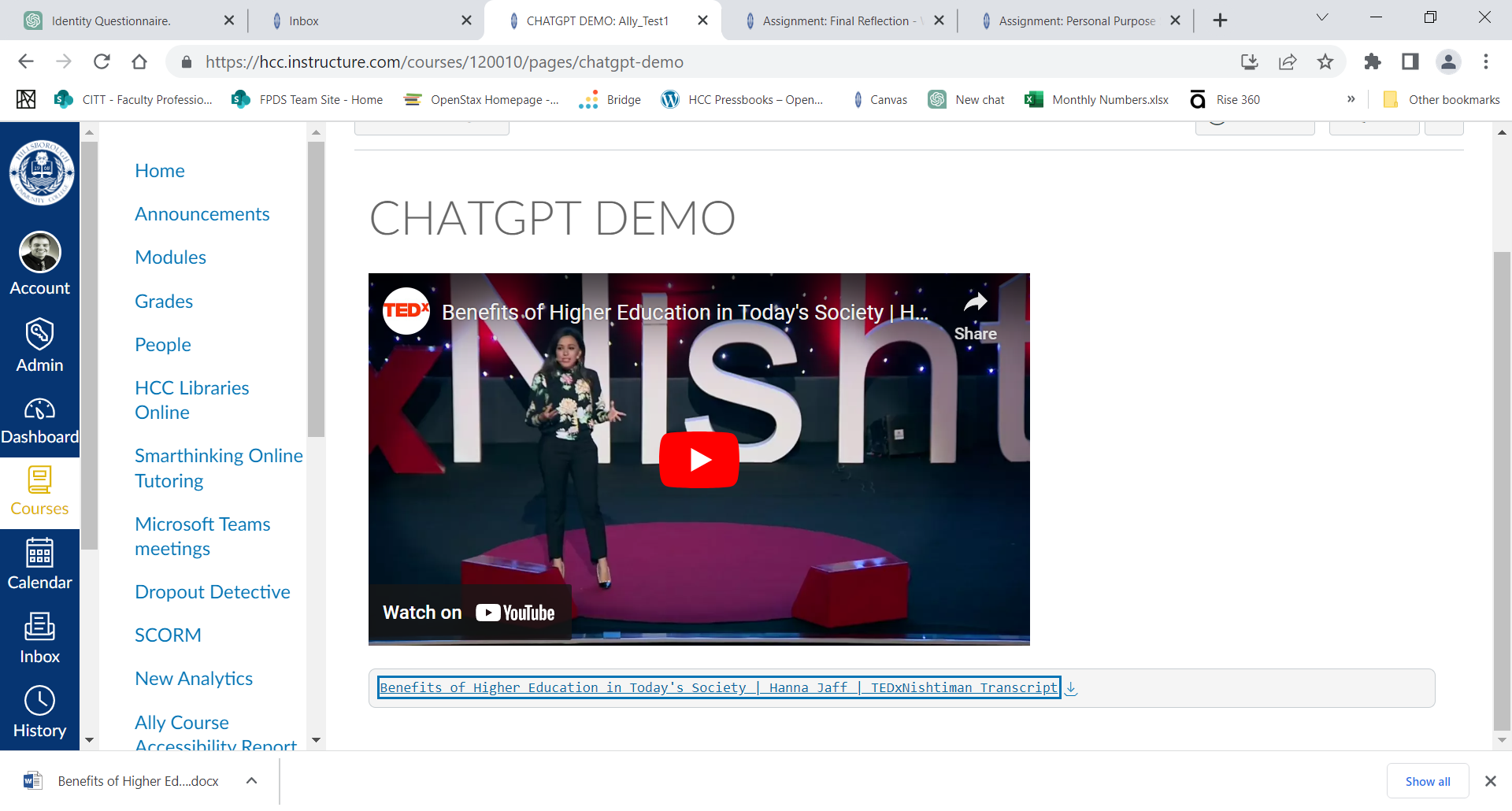
A completed transcript document ready to be shared. Note. Screenshot by author from Microsoft Word. - Publish the transcript. Upload or link the transcript alongside the video in Canvas, Pressbooks, or another platform.
Accessibility Check
If important visual information is not described in audio, consider adding an audio description.
Downloading YouTube Videos
It is illegal to download YouTube videos using a YouTube Downloader and republish the video. It is permissible, however, to download a YouTube video that has no captions and generate captions for the video’s transcript. This can be done using Canvas Studio. After generating the transcript, place the transcript below the video in Canvas.
Chapter Summary
YouTube captions provide a useful starting point but often contain errors. By extracting captions, correcting them with AI tools, and reviewing the transcript, educators can create accessible video materials that support all learners.
Key Takeaways
- Auto-generated captions should always be reviewed.
- AI tools can help clean and format transcripts.
- Accessible videos should include captions and transcripts.
- Transcripts should be shared alongside videos.
Practice Activity
Select a short YouTube video used in your course. Extract the captions, correct them using an AI tool, and create a formatted transcript. Review the video to determine whether additional audio descriptions are needed.
Further Reading
Licenses and Attribution
CC Licensed Content, Original
This educational material includes AI-generated content from ChatGPT by OpenAI. The original content created by Josh Hill, Neida Abraham, and Emiliana Olavarrieta from Hillsborough College is licensed under a Creative Commons Attribution-NonCommercial 4.0 International License (CC BY-NC 4.0).
All images in this textbook generated with DALL·E are licensed under the terms provided by OpenAI, allowing their use, modification, and distribution with appropriate attribution.
Unless otherwise noted, the original instructional text, screenshots created by the author, and original instructional graphics in this chapter are included under the same license as the chapter.
Third-Party Platforms and Interfaces
This chapter includes screenshots of third-party software and web interfaces, including YouTube, ChatGPT, and Microsoft Word, for purposes of instruction, commentary, and accessibility training. These screenshots are used to document a workflow and remain subject to the terms, policies, and rights associated with the respective platforms.
AI Use Disclosure
This chapter includes content developed with assistance from ChatGPT by OpenAI. The author reviewed, edited, and curated the material for accuracy, accessibility, and instructional purpose.
References
- Audio Description Project. (n.d.). Audio description project.
- Microsoft. (n.d.). Clear all text formatting.
- OpenAI. (2022, November 30). Introducing ChatGPT.
- WebAIM. (n.d.). Captions, transcripts, and audio descriptions.
- World Wide Web Consortium, Web Accessibility Initiative. (n.d.). Captions/subtitles.
- World Wide Web Consortium, Web Accessibility Initiative. (n.d.). Transcripts.
Other Licensed Content
YouTube + ChatGPT: How to Create a CLEAN Transcript from Any Video
EdTech Hustle
License: Standard YouTube License.