Using ChatGPT to Convert Scanned PDFs into Accessible STEM Content
Using ChatGPT to Convert Scanned PDFs into Accessible STEM Content
Faculty frequently use scanned PDFs that contain handwritten math, chemistry equations, annotations, tables, or diagrams. Unfortunately, these materials are often inaccessible because they are stored as images rather than readable text. That means students using screen readers, text-to-speech tools, refreshable braille displays, or other assistive technologies may not be able to access the content.
This chapter demonstrates how to use ChatGPT to support OCR (Optical Character Recognition), interpret handwritten scientific notation, identify likely recognition errors, and convert the content into accessible formats before publishing it inside a Canvas course page. The workflow is especially useful when faculty need to repair handwritten math and chemistry notation that traditional OCR tools often misread.
Used carefully, this process can help transform scanned instructional materials into more inclusive digital learning content.
Chapter Overview
This chapter explains why scanned PDFs often create accessibility barriers, how ChatGPT can support OCR workflows for handwritten math and chemistry, and how faculty can turn extracted content into accessible, Canvas-ready instructional pages. It also includes prompting strategies, review steps, accessibility checks, and resource links for continued practice.
Note to Reader: Audio-described version of the video. Use player controls to play, pause, or adjust volume.
Learning Objectives
By the end of this chapter, you should be able to:
- Identify common accessibility barriers in scanned PDFs.
- Use ChatGPT to extract text and equations from scanned documents.
- Convert handwritten math and chemistry notation into accessible formats.
- Distinguish between math workflows for Canvas and Pressbooks.
- Use prompting strategies to improve OCR results and catch errors.
- Prepare content for publication in an accessible Canvas course page or Pressbooks chapter.
- Review OCR-generated content for accuracy before sharing it with students.
Key Terms
- OCR (Optical Character Recognition): Technology that converts images of text into machine-readable text.
- Accessible content: Digital content designed so that people with a wide range of abilities and assistive technologies can use it.
- LaTeX: A markup language commonly used to format mathematical and scientific notation.
- MathML: A web standard for representing mathematics in a structured, accessible format.
- Alt text: Short text descriptions that explain the purpose or content of images.
- Canvas page: A content page in the Canvas learning management system used to share instructional materials.
- Pressbooks Text editor: The HTML editing view in Pressbooks used for inserting code such as LaTeX.
Why Scanned PDFs Create Accessibility Barriers
Scanned PDFs often contain pictures of text rather than actual digital text. Even when the document looks readable on screen, assistive technologies may not be able to interpret it correctly. This creates barriers for students who rely on screen readers or need content in flexible formats.
Accessibility problems become even more serious when the document includes handwritten math or chemistry notation. General OCR tools may misread exponents, subscripts, arrows, symbols, radicals, summation signs, charges, coefficients, or structural formulas. A small recognition mistake can completely change the meaning of an equation or reaction.
Common accessibility challenges in scanned PDFs include:
- Handwritten math equations embedded as images.
- Chemistry formulas and reactions that are not readable by screen readers.
- Poor OCR recognition of subscripts, superscripts, and special symbols.
- Unlabeled diagrams or figures with no alt text.
- Missing headings and weak document structure.
- Content that cannot be copied, searched, or edited.
Instructor Tip
If you cannot highlight or copy the text in a PDF, the document likely contains scanned images rather than true digital text and will need OCR support before it can be made more accessible.
When ChatGPT Can Help
ChatGPT can be useful when a scanned PDF includes typed text, handwritten notes, formulas, equations, or scientific notation that need to be converted into editable course content. It can help faculty:
- Extract readable text from uploaded pages or screenshots.
- Interpret handwritten math expressions.
- Convert equations into LaTeX or MathML, depending on the publishing environment.
- Rewrite OCR output into a clean lesson structure.
- Identify places where the OCR result may be uncertain.
- Generate image descriptions and accessibility checks.
ChatGPT should be treated as a strong assistant, not a final authority. Faculty should always verify scientific and mathematical content before publishing it for students.
Accessibility Check
OCR errors in math and chemistry can change meaning quickly. Always review equations, coefficients, signs, exponents, subscripts, and arrows before posting content in Canvas or Pressbooks.
AI-Assisted OCR Workflow
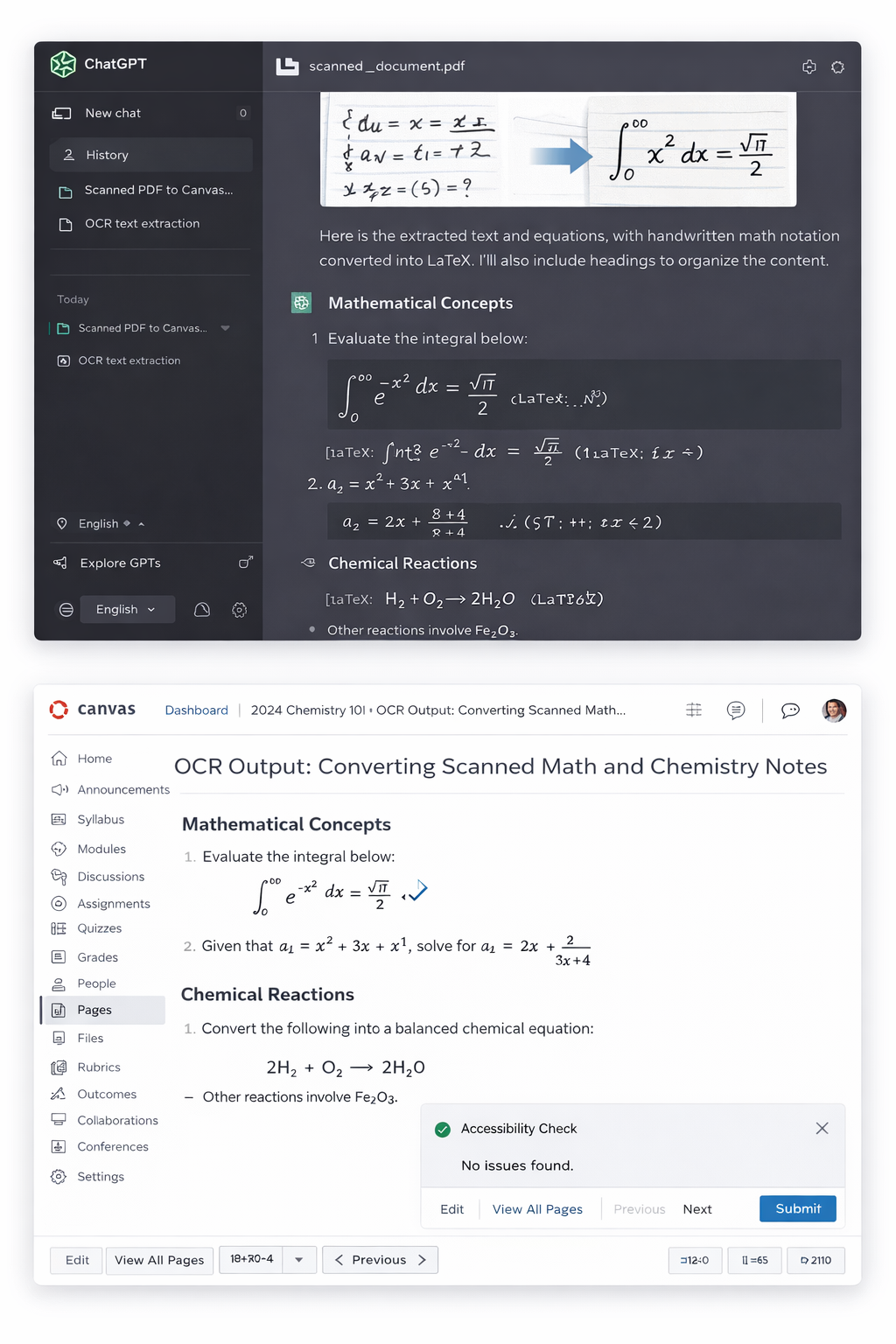
The image below shows a sample ChatGPT workflow for extracting handwritten math and chemistry from a scanned PDF and then publishing the cleaned content into a Canvas course page.
Accessibility Check
A screenshot should not be the only way important information is conveyed. Make sure any text inside the image is large enough to read, has sufficient contrast against the background, and is also explained in the surrounding text.
Typical Workflow
- Upload the scanned PDF, image, or screenshot to ChatGPT.
- Ask ChatGPT to extract text and interpret the math or chemistry notation.
- Convert equations into the correct output format for the platform you are using.
- Check the results for OCR mistakes and scientific accuracy.
- Ask ChatGPT to organize the material into a lesson structure and provide HTML to copy.
- Paste the revised content into a Canvas page or Pressbooks chapter under the HTML or Code in the WYSIWYG.
- Run the appropriate accessibility checks and do a final review.
Step 1: Upload the PDF or Image to ChatGPT
Start by uploading the scanned PDF, image, or screenshot containing the instructional content. For best results, use the clearest version of the document available. If a full PDF is difficult to interpret, consider uploading one page at a time or using page screenshots for especially complex handwritten sections.
A simple starting prompt might look like this:
Extract all readable text from this scanned document.

Preserve the document structure using headings and lists where possible.

Identify anything that is difficult to read or unclear.
If the document includes math or chemistry, be explicit about that in your prompt. ChatGPT generally performs better when it knows what kind of notation it should expect.
Step 2: Tell ChatGPT What Kind of Content It Is Reading
Handwritten scientific notation is often misread when the prompt is too general. A more specific prompt can improve the output significantly.
Prompt for Handwritten Math
This document contains handwritten mathematics.

Extract the equations and convert them into accessible digital formats.

Preserve fractions, exponents, square roots, integrals, limits, and summation notation.

Provide:
1) Canvas format using MathML inside HTML
2) Pressbooks format using LaTeX

Flag any symbols that may be ambiguous or uncertain.
Prompt for Handwritten Chemistry
This document contains handwritten chemistry notation.

Extract all chemical formulas and reactions.

Preserve subscripts, coefficients, charges, state symbols, and reaction arrows.

Convert the results into accessible plain text and LaTeX when appropriate.

Flag anything that may be unclear.
This staged approach usually produces better results than asking for extraction, correction, formatting, and accessibility all at once.
Common OCR Problems in Math and Chemistry
Even when a scan looks legible to a human reader, OCR systems may struggle with the following:
- Faint pencil or stylus writing.
- Crowded notation with multiple lines of work.
- Small subscripts and superscripts.
- Similar-looking symbols such as x, multiplication signs, and variable notation.
- Vertical fractions and stacked notation.
- Reaction arrows, equilibrium arrows, and charge notation.
- Marginal notes written at angles.
- Low-resolution scans or photos taken under poor lighting.
Faculty can reduce these problems by uploading higher-quality scans, cropping especially dense sections, and prompting in smaller chunks when needed.
Step 3: Convert Handwritten Math into Accessible Format
Once ChatGPT extracts handwritten equations, the next task is to convert them into a digital format that is easier to read, edit, and publish. The right format depends on where the equation will appear. For this workflow, there are two explicit paths: MathML for Canvas and LaTeX for Pressbooks.
For example, a handwritten equation such as:
x² + 3x + 2 = 0
may first be normalized as plain text or LaTeX:
x^2 + 3x + 2 = 0
From there, ChatGPT can help produce platform-specific output.
Instructor Tip
Ask ChatGPT for both versions from the same handwritten notes so you can reuse one source image for multiple publishing environments.
Two Ways to Represent Handwritten Math for Accessibility
When converting handwritten math into accessible digital formats, the output format depends on where the content will be used. Canvas and Pressbooks handle math differently, so choosing the correct format is essential.
Option 1: Canvas Uses MathML
Canvas uses MathML in the HTML Editor. This is the format you should request when your final destination is a Canvas page, quiz, or assignment.
Use a prompt like this:
Convert these handwritten math notes into Canvas format using MathML inside HTML.
Example Canvas code:
<p>
  <math xmlns="http://www.w3.org/1998/Math/MathML">
    <mrow><mi>x</mi><mo>+</mo><mn>3</mn><mo>=</mo><mn>7</mn></mrow>
  </math>
</p>- Canvas = MathML.
- Paste the code into the HTML Editor, not the regular rich text editor.
- MathML is accessible and works well with screen readers and Ally.
Option 2: Pressbooks Uses LaTeX
Pressbooks uses LaTeX in the Text (HTML) editor. This is the format you should request when your final destination is a Pressbooks chapter.
Use a prompt like this:
Convert these handwritten math notes into Pressbooks format using LaTeX.
Example Pressbooks code:
<p>[latex]x + 3 = 7[/latex]</p>
<p>[latex]\frac{7}{3} = 1[/latex]</p>- Pressbooks = [latex].
- Paste the code into the Text (HTML) editor, not the Visual editor.
- This is the preferred method for math in Pressbooks chapters.
Accessibility Check
What to Remember
- Canvas uses MathML.
- Pressbooks uses LaTeX.
- Ask ChatGPT for both formats from the same handwritten notes.
Viewing Math in Canvas and Pressbooks
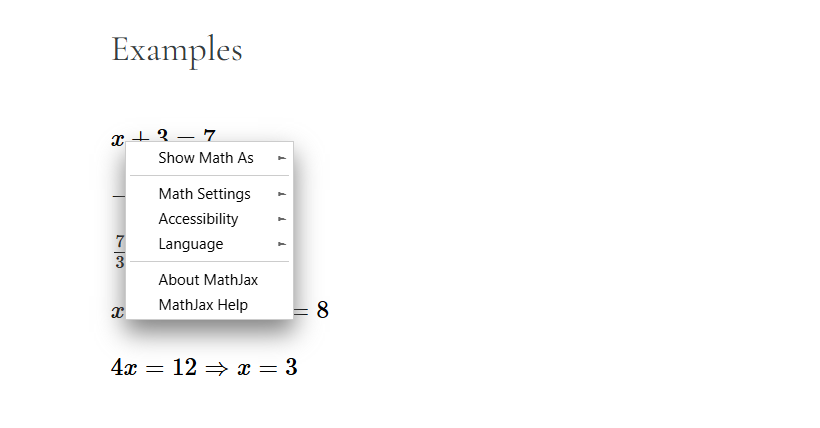
Regardless of publication location (Canvas or Pressbooks): When you right-click on a math equation, a menu will appear with options such as Show Math As, Math Settings, Accessibility, and Language. These tools allow you to customize how math is displayed and improve accessibility for different learning needs.
Examples
Apply the properties above to solve the following equations:
- [latex]x-5=10[/latex]
- [latex]3y=21[/latex]
- [latex]\frac{9}{4}=2.25[/latex]
- [latex]x-2=6 \Rightarrow x=8[/latex]
- [latex]5x=20 \Rightarrow x=4[/latex]
- [latex]\frac{x}{3}=7 \Rightarrow x=21[/latex]
- [latex]2x+3=11 \Rightarrow 2x=8 \Rightarrow x=4[/latex]
Common Mistakes to Avoid
- Do not paste LaTeX directly into Canvas and expect it to render.
- Do not paste either format into the visual editor.
- Do not wrap equations in code blocks when the goal is accessible rendered math.
Step 4: Convert Handwritten Chemistry into Accessible Format
Chemistry notation brings its own OCR challenges. Formulas often include subscripts, coefficients, phase labels, charges, and arrows that general OCR tools may misread. A chemistry reaction should be checked carefully to ensure that symbols and formatting are correct.
For example, a handwritten reaction might be converted into accessible plain text as:
2H₂ + O₂ → 2H₂O
Or into LaTeX as:
2H_2 + O_2 \rightarrow 2H_2O
When reviewing chemistry OCR output, check for:
- Missing or incorrect subscripts.
- Misread coefficients.
- Incorrect charge notation.
- Reaction arrows replaced with dashes or other symbols.
- Confusion between letters and numbers such as O and 0.
- Lost state symbols such as (s), (l), (g), or (aq).
If the document contains structural diagrams, uploaded images may still require human review and manual description.
Step 5: Ask ChatGPT to Detect OCR Errors
One of the most useful strategies is to ask ChatGPT not only to extract the content, but also to review its own output for likely OCR mistakes. This works especially well for handwritten material where small recognition errors can create large conceptual errors.
Use a prompt such as:
Review the extracted text and equations for OCR errors.

Check for incorrect characters, missing subscripts, incorrect superscripts, or mistaken symbols.

Create a list of possible errors and suggest corrected versions.
This additional pass can help reveal problems such as:
- The number 1 confused with the lowercase letter l.
- The number 0 confused with the capital letter O.
- An equals sign confused with a dash.
- A minus sign omitted entirely.
- Superscripts flattened into baseline text.
- Reaction arrows replaced by punctuation.
Step 6: Reformat the OCR Output into a Lesson
Once the text and equations have been extracted and reviewed, the next step is to organize the material into a clean instructional format. Instead of pasting raw OCR output into Canvas or Pressbooks, ask ChatGPT to restructure the content as a lesson with headings, lists, short paragraphs, and clearly separated equations.
You can use a prompt like this:
Reformat this OCR output into an accessible lesson.

Use clear headings, short paragraphs, bullet lists, and properly formatted equations.

Keep the language student-friendly and preserve the original meaning.

Make the lesson easy to paste into a Canvas page or Pressbooks chapter.
This step can help convert a rough scan into content that is much easier for students to navigate.
Step 7: Add Alt Text for Images and Visuals
If the original PDF includes graphs, diagrams, handwritten figures, lab setups, or visual annotations, those visuals also need accessible descriptions. ChatGPT can help draft alt text, but faculty should revise it so the description matches the instructional purpose of the image.
Use a prompt like this:
Write concise and meaningful alt text for the visuals in this document.

Focus on the educational purpose of each image.

For math or chemistry visuals, describe the important relationships, symbols, or reactions shown.
Alt text should explain why the image matters in the lesson, not just what it looks like. For example:
- Weak alt text: handwritten chemistry equation on paper
- Stronger alt text: handwritten reaction showing hydrogen and oxygen combining to form water, later rewritten in accessible notation
Step 8: Copy the Content into Canvas or Pressbooks
After the content has been cleaned and reviewed, it can be moved into the final publishing platform.
Canvas Workflow
- Open your Canvas course.
- Select Pages.
- Create a new page or edit an existing one.
- Paste revised lesson text into the Rich Content Editor.
- Paste equations as MathML in the HTML Editor.
- Check that headings, lists, and equations display correctly.
- Run the Canvas Accessibility Checker.
- Save and preview the page.
Pressbooks Workflow
- Open your Pressbooks chapter.
- Switch to the Text (HTML) editor.
- Paste the revised lesson text into the chapter (the converted handwriting into LaTeX in the form of HTML from ChatGPT).
- Check that headings, lists, and equations display correctly.
- Use the enabled accessibility tools such as Sa11y and Editoria11y.
- Save and preview the chapter.
Accessibility Check
Automated checkers help, but they do not catch every issue in equations, OCR-repaired content, captions, or diagrams. Always do a manual review before publishing.
Accessibility Checklist Before Publishing
- Headings follow a logical order.
- Paragraphs are broken into readable sections.
- Lists are formatted as true lists, not manually typed with dashes.
- Math is converted into the correct structured digital notation for the platform.
- Chemistry notation preserves subscripts, coefficients, charges, and reaction arrows.
- Images include meaningful alt text.
- Links use descriptive text rather than raw URLs, except for YouTube links in Pressbooks when intentionally pasted as raw URLs.
- OCR errors have been reviewed and corrected.
- The page or chapter has been checked in the final platform before publication.
Accessibility Check
If you use a YouTube video, automated captions are not sufficient on their own. Review the transcript, correct punctuation and speaker clarity if needed, and include a clean transcript below the video when required by your project workflow.
Faculty Prompt Library for OCR, Math, Chemistry, and Accessibility
The following prompts are designed to help faculty use ChatGPT more effectively when working with scanned PDFs, handwritten equations, and inaccessible instructional materials. These can be copied, pasted, and adapted to different teaching contexts.
Instructor Tip
The more specific your prompt is about the notation, layout, and desired output, the better your results are likely to be.
1. General OCR Prompt for Scanned PDFs
Extract all readable text from this scanned PDF.

Preserve the document structure using headings and lists where possible.

Identify any sections that are unclear, incomplete, or difficult to interpret.

Format the output so it can be pasted into a Canvas course page or Pressbooks chapter.
2. OCR Prompt for Handwritten Math
This document contains handwritten math.

Extract the equations and convert them into:
1) Canvas format using MathML inside HTML
2) Pressbooks format using LaTeX

Preserve exponents, fractions, square roots, integrals, limits, and summation notation.

Flag any symbols that may be ambiguous or uncertain.
3. OCR Prompt for Handwritten Chemistry
This document contains handwritten chemistry notation.

Extract all chemical formulas and reactions.

Preserve subscripts, coefficients, charges, state symbols, and reaction arrows.

Convert the results into accessible plain text and LaTeX when appropriate.

Flag anything that may be unclear.
4. Prompt to Detect OCR Errors
Review the extracted text and equations for OCR errors.

Check for incorrect characters, missing subscripts, incorrect superscripts, or mistaken symbols.

Create a list of possible errors and suggest corrected versions.
5. Prompt to Convert OCR Output into a Lesson
Reformat this OCR output into an accessible lesson.

Use clear headings, short paragraphs, bullet lists, and properly formatted equations.

Keep the language student-friendly and preserve the original meaning.

Make the lesson easy to paste into a Canvas page or Pressbooks chapter.
6. Prompt to Create Alt Text for Visuals
Write concise and meaningful alt text for the visuals in this document.

Focus on the educational purpose of each image.

For math or chemistry visuals, describe the important relationships, symbols, or reactions shown.
7. Prompt to Turn a Worksheet into Accessible Course Content
Convert this scanned worksheet into accessible instructional content.

Extract the text, recreate the equations in accessible form, and organize the content with headings.

Keep the original instructional purpose, but improve readability and accessibility for students using Canvas or Pressbooks.
Chapter Summary
Scanned PDFs containing handwritten math and chemistry can create major accessibility barriers in digital courses. Because the content is often stored as images, students may not be able to access it with assistive technologies. Traditional OCR tools may also misread scientific notation in ways that change meaning.
ChatGPT can support faculty by extracting text, interpreting handwritten equations, converting notation into structured digital formats, flagging likely OCR mistakes, and reorganizing content into a lesson format suitable for Canvas or Pressbooks. When combined with careful review and accessibility checks, this workflow can help faculty turn difficult scanned documents into more usable and inclusive course materials.
Key Takeaways
- Scanned PDFs often contain inaccessible image-based content.
- Handwritten math and chemistry require extra care during OCR.
- Specific prompts improve OCR quality and help catch mistakes.
- Canvas uses MathML for accessible math workflows.
- Pressbooks uses LaTeX in the Text editor.
- Human review remains essential for accuracy and accessibility.
Review Questions
- Why are scanned PDFs often inaccessible for students using assistive technologies?
- What kinds of OCR errors are most common in handwritten math and chemistry?
- Why does subject-specific prompting improve ChatGPT’s OCR support?
- What is the correct format for equations in Canvas?
- What is the correct format for equations in Pressbooks?
Practice Activity
Select a scanned worksheet, lab handout, or lecture note page that includes handwritten math or chemistry content.
- Upload the page to ChatGPT.
- Use a general OCR prompt to extract the text.
- Use a subject-specific prompt to convert equations or reactions into accessible notation.
- Ask ChatGPT to provide both formats for handwritten math: Canvas MathML and Pressbooks LaTeX.
- Ask ChatGPT to flag likely OCR errors.
- Paste one version into Canvas and the other into Pressbooks, if applicable.
- Run the accessibility checker in the final platform.
- Revise the page or chapter based on what you find.
Further Reading and Resources
- Canvas Accessibility Checker Guide – Instructions for using the built-in accessibility checker in the Canvas Rich Content Editor.
- MathJax Documentation – Tools and documentation for rendering mathematical notation on the web.
- Web Content Accessibility Guidelines (WCAG) – International standards for accessible digital content maintained by the W3C.
- W3C Web Accessibility Initiative (WAI) – Guidance on accessible design practices for web content and educational materials.
- WebAIM Accessibility Resources – Practical tutorials and tools for improving accessibility in online learning environments.
- Oregon State University: Accessible Equations – Guidance for creating more accessible math and chemistry equations and formulas.
Licenses and Attribution
CC Licensed Content, Original
This educational material includes AI-generated content from ChatGPT by OpenAI. The original content created by Josh Hill, Neida Abraham, and Emiliana Olavarrieta from Hillsborough College is licensed under a Creative Commons Attribution-NonCommercial 4.0 International License (CC BY-NC 4.0).
All images in this textbook generated with DALL·E are licensed under the terms provided by OpenAI, allowing their use, modification, and distribution with appropriate attribution.
Other Licensed Content
How to Use ChatGPT to OCR Handwriting
The Accessibility Guy
License: Standard YouTube License.