Accessibility Tips and Tricks for Digital Content
Accessibility Tips and Tricks for Digital Content
Accessible digital content helps all learners use course materials more easily, including students who rely on screen readers, keyboard navigation, captions, transcripts, or other assistive technologies. This chapter provides practical strategies for improving accessibility in digital learning materials and publishing workflows.
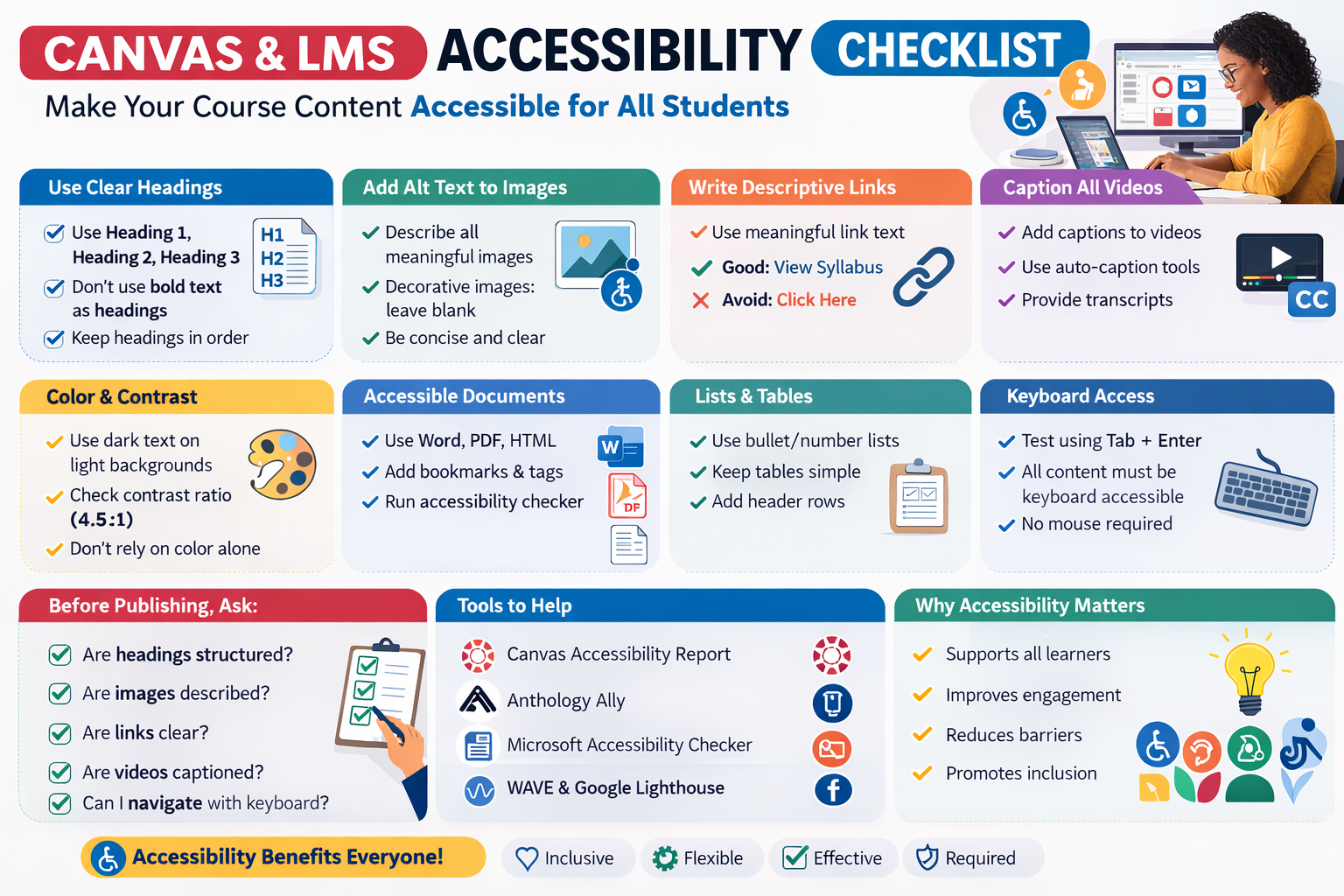
Long Description: Accessibility Checklist Infographic
This infographic presents a checklist for improving accessibility in Canvas or other learning management systems. The checklist includes the following practices:
- Use proper heading structures to organize content clearly.
- Add meaningful alternative text to all informative images.
- Write descriptive link text that explains the destination or purpose.
- Provide captions for all video content and transcripts when appropriate.
- Ensure sufficient color contrast between text and background.
- Organize navigation in a consistent and predictable way.
- Run accessibility checkers and manually review content for usability.
The checklist emphasizes proactive design to reduce barriers and improve access for all learners.
This chapter introduces core accessibility practices for digital content, including headings, alt text, descriptive links, captions, transcripts, color contrast, accessible tables, keyboard navigation, and clear language.
Learning Objectives
By the end of this chapter, you should be able to:
- Use headings, lists, tables, and file names in accessible ways.
- Write descriptive link text and effective alt text.
- Identify when captions, transcripts, and multiple formats are needed.
- Apply color and contrast principles to digital content.
- Use accessibility checkers and keyboard testing before publishing.
Key Terms
- Alt text: A short description that conveys the meaning or function of an image.
- Color contrast: The difference in brightness between text and background.
- Keyboard navigation: Using a keyboard instead of a mouse to move through content.
- Transcript: A text version of spoken audio.
- Caption: On-screen text representing spoken audio in video.
1. Use Proper Headings
Headings help users navigate content and understand structure.
Tips for Headings
- Use built-in heading styles.
- Do not use bold text as a substitute.
- Keep headings in logical order.
Accessibility Check
2. Write Descriptive Links
Avoid vague phrases like click here.
Less Accessible Example
Click here to view the syllabus.
More Accessible Example
View the course syllabus.
Accessibility Check
3. Add Alternative Text
Alt text provides access to images for screen reader users.
Good Example
Student using a laptop with screen reader software.
Decorative Images
Use empty alt text: alt=""
4. Use Sufficient Color Contrast
| Text type | Minimum contrast |
|---|---|
| Normal text | 4.5:1 |
| Large text | 3:1 |
5. Do Not Use Color Alone
Use symbols or labels in addition to color.
6. Use Lists Correctly
Use built-in list tools rather than typing symbols manually.
7. Caption All Videos
Captions support accessibility and flexible learning environments.
8. Provide Transcripts
Provide transcripts for audio-only content.
9. Use Accessible Tables
- Use header rows.
- Keep tables simple.
- Avoid merged cells.
10. Use Meaningful File Names
Digital-Accessibility-Checklist.pdf is clearer than generic file names.
11. Use Accessibility Checkers
Use built-in tools such as Word, PowerPoint, Canvas Ally, or WAVE.
12. Test with Keyboard Navigation
- Tab
- Shift + Tab
- Enter
Practical Tip
13. Provide Multiple Formats
- HTML
- Audio
- Captioned video
14. Use Clear Language
Less Clear
Students should endeavor to utilize available institutional resources.
Clearer
Students should use available campus resources.
15. Keep Layout Simple
- Avoid clutter
- Avoid flashing elements
- Keep navigation simple
Important Note
Quick Accessibility Checklist
- Are headings structured properly?
- Do images have alt text?
- Are links descriptive?
- Are videos captioned?
- Is contrast sufficient?
- Is keyboard navigation possible?
Chapter Summary
Key Takeaways
- Use structural tools like headings and lists.
- Provide alt text, captions, and transcripts.
- Ensure strong color contrast.
- Test with accessibility tools and keyboard navigation.
Review Questions
- Why are headings important?
- What makes link text accessible?
- When should alt text be empty?
- Why avoid using color alone?
- How does keyboard testing help?
Practice Activity
Licenses and Attribution
CC Licensed Content, Original
This educational material includes AI-generated content from ChatGPT by OpenAI. The original content created by Josh Hill, Neida Abraham, and Emiliana Olavarrieta from Hillsborough College is licensed under a Creative Commons Attribution-NonCommercial 4.0 International License (CC BY-NC 4.0).
All images in this textbook generated with DALL·E are licensed under the terms provided by OpenAI, allowing their use, modification, and distribution with appropriate attribution.
Other Licensed Content
“Easy Checks” A First Review of Web Accessibility – W3C WAI Resource Overview
W3C Web Accessibility Initiative (WAI)
License: Standard YouTube License.
Topic 3 / Recommended Practices & Tips for Digital Accessibility [Open Captioned Video] [6:25 min]
ADA National Network
License: Standard YouTube License.