Designing with Color for Accessibility
Designing with Color for Accessibility
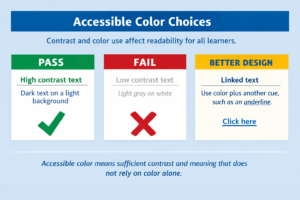
Color can make digital content more engaging, but poor color choices can make text difficult or impossible to read for some users. Accessible color design ensures that information remains clear and readable for everyone, including people with low vision or color-vision differences.
This tutorial explains how to check color contrast in Canvas and how to choose color combinations that support accessibility.
Learning Objectives
By the end of this chapter, you should be able to:
- Explain why color contrast is important for accessibility.
- Use the Canvas Accessibility Checker to identify contrast issues.
- Choose color combinations that improve readability.
- Avoid using color alone to communicate meaning.
Key Terms
- Accessibility Checker: A Canvas tool that identifies accessibility issues such as color contrast problems.
- Color Blindness: A difference in color perception that makes some colors difficult to distinguish.
- Color Contrast: The difference in brightness between text and its background.
- Use of Color: An accessibility principle stating that color should not be the only way to communicate information.
Why Color Accessibility Matters
People perceive color and contrast in different ways. Some users have low vision, while others experience color blindness that makes certain color combinations difficult to distinguish. If text and background colors do not contrast enough, content can become unreadable.
Tip
Accessible color design ensures that content remains readable and that meaning is not communicated by color alone.
Color Contrast
Checking Color Contrast in Canvas
The Canvas Rich Content Editor includes an Accessibility Checker that helps identify contrast problems.
- Open the content you want to edit. Navigate to the page, assignment, or discussion you want to update and click Edit.
- Launch the Accessibility Checker. In the Rich Content Editor, select the Accessibility Checker button located in the bottom-right corner.
- Review the accessibility issues. If Canvas detects accessibility issues, they will appear in a panel on the right side of the editor.
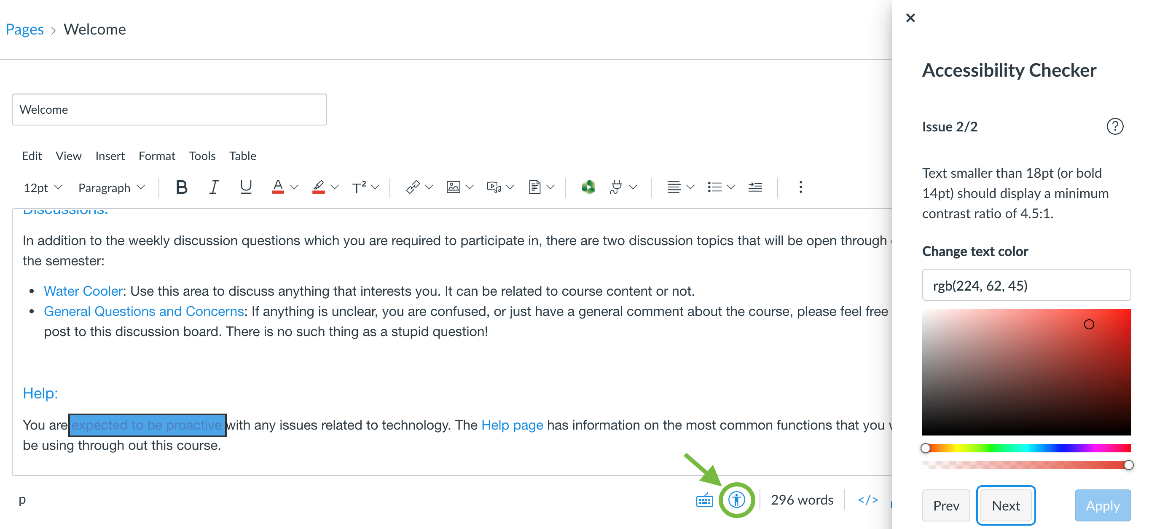
The Canvas Accessibility Checker identifies text with insufficient color contrast. Screenshot from an ENC1101 course shell by Hillsborough College, 2026. Used under fair use for instructional purposes.
- Choose a more accessible color. If low contrast text is detected, use the color selector provided by the Accessibility Checker to choose a darker or more contrasting color. When the color meets accessibility requirements, the Apply button will become active.
- Apply the fix. Click Apply to update the color.
- Save your changes. When you finish reviewing all issues, click Save at the bottom of the editor.
Color Contrast
Color contrast refers to the difference in brightness between text and its background. Strong contrast improves readability and helps users distinguish content more easily.
Learn more about contrast requirements in the WCAG explanation of minimum contrast requirements.
Color Contrast Resources
- WebAIM Color Contrast Checker
- Accessible color palette builder
- Accessible Type-Color Combinations — University of Virginia
- Accessible Colour Contrast — University of Sussex
Accessibility Check
-
- Ensure colored text remains readable on different screens.
- Check that text has enough contrast with its background.
- Do not rely on color alone to communicate meaning.
- Use links, labels, icons, or underlines to reinforce meaning.
Color Blindness and Design
Color blindness affects how some people perceive certain colors. For example, red and green may appear very similar to users with red-green color blindness.
Because of this, color should never be the only way information is communicated.
For example:
- A correct answer should not be shown only in green.
- An incorrect answer should not be shown only in red.
- Links should be underlined rather than distinguished only by color.
Helpful resources include the National Eye Institute guide to color blindness and WebAIM guidance on designing for color-blind users.
What Is Accessible Use of Color?
Accessible color design ensures that:
- Text contrasts clearly with its background.
- Color is not the only way meaning is communicated.
- Important information is also conveyed through labels, icons, or text.
To better understand color perception differences, you may explore a color blindness test and simulation.
Important Note
Even when a color combination looks acceptable to you, it may still be difficult for some users to read. Always use an accessibility checker and avoid depending only on visual judgment.
Chapter Summary
Accessible color choices improve readability and help ensure that Canvas content works for users with low vision or color-vision differences. The Canvas Accessibility Checker can help instructors identify and fix contrast issues, but good design decisions are still essential. Color should support meaning, not carry it alone.
Key Takeaways
- Text must have sufficient contrast with its background.
- The Canvas Accessibility Checker helps identify contrast issues.
- Color should never be the only way information is communicated.
- Accessible design benefits all learners.
Practice Activity
Open a page in Canvas that uses colored text or highlights. Run the Accessibility Checker and revise the page so that all text has sufficient contrast and meaning is not communicated by color alone.
Further Reading
Licenses and Attribution
CC Licensed Content, Original
This educational material includes AI-generated content from ChatGPT by OpenAI. The original content created by Josh Hill, Neida Abraham, and Emiliana Olavarrieta from Hillsborough College is licensed under a Creative Commons Attribution-NonCommercial 4.0 International License (CC BY-NC 4.0).
All images in this textbook generated with DALL·E are licensed under the terms provided by OpenAI, allowing their use, modification, and distribution with appropriate attribution.
Other Licensed Content
Why accessible color contrast matters
Pope Tech
License: Standard YouTube License.
Color Contrast
USU Digital Accessibility Services
License: Standard YouTube License.