Generating Captions for MP3 Files in Canvas Studio
Generating Captions for MP3 Files in Canvas Studio
Learning Objectives
By the end of this chapter, you should be able to:
- Request captions for an audio file in Canvas Studio.
- Identify where to review, edit, and publish caption files.
- Download an SRT caption file for further editing.
- Prepare a readable transcript for student use.
- Apply accessibility practices when sharing audio transcripts in Canvas.
Key Terms
- Caption request tool: A Canvas Studio feature that automatically generates captions for media files.
- SRT file: A subtitle file format that stores caption text and timing information.
- Transcript: A text version of spoken audio content that can be read independently of the media.
- Published captions: Captions that have been reviewed and made available for display with a media file.
Chapter Overview
This chapter explains how to request captions for media in Canvas Studio, review and publish the caption file, download the resulting SRT file, and prepare a student-ready transcript. It also highlights the limitations of auto-generated captions and the importance of editing for accuracy and accessibility.
Why This Process Matters
Canvas Studio can generate captions automatically, but the results are not fully accurate. Auto-generated captions may contain spelling errors, punctuation issues, incorrect speaker wording, or misheard terms. For that reason, captions should always be reviewed before they are published or converted into a transcript for students.
You can also upload your own caption files to Canvas Studio media. After captions have been added to media, other users may be able to download the media transcript in Canvas Studio.
Accessibility Reminder
Auto-generated captions are a starting point, not a finished accessibility solution. Review and correct captions before publishing them for student use.
Step 1: Open the Media File
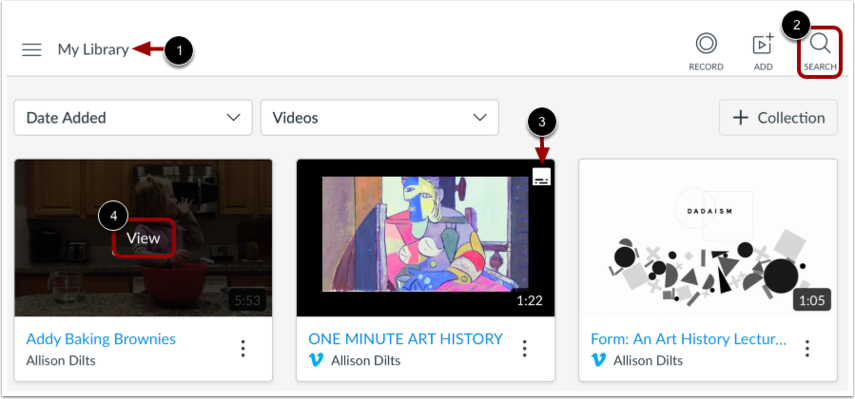
- Open Canvas Studio.
- Locate the media file in My Library or use the search field.
- Look for the caption badge if the media already includes captions.
- Select View to open the media file.
Step 2: Open the Captions Tab
After opening the media file, select the Captions tab. If the media does not yet have captions, choose Request to begin the captioning process.
Step 3: Request Captions
If the media file does not already include captions, use the caption request tool to generate them automatically.
- Open the Language drop-down menu.
- Select the language spoken in the media file.
- Choose Request to submit the caption request.
Tip
Select the correct spoken language before requesting captions. This can improve the quality of the generated transcript.
Step 4: Monitor the Caption Request
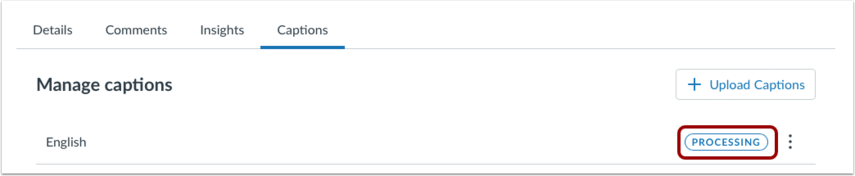
Canvas Studio displays the queued caption request while it is being processed. You will receive an email notification when the caption transcript is ready for review.
Step 5: Review the Caption File Status
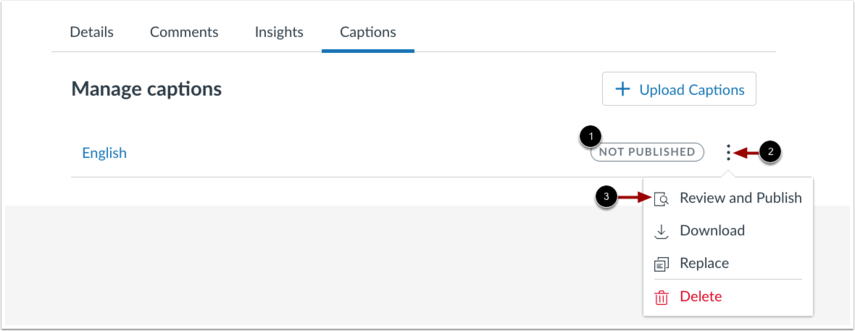
In the Captions tab, review the status of the caption file. Captions must be reviewed and published before they will display with the media.
- Open the Options menu.
- Select Review and Publish.
Step 6: Edit and Publish the Caption File
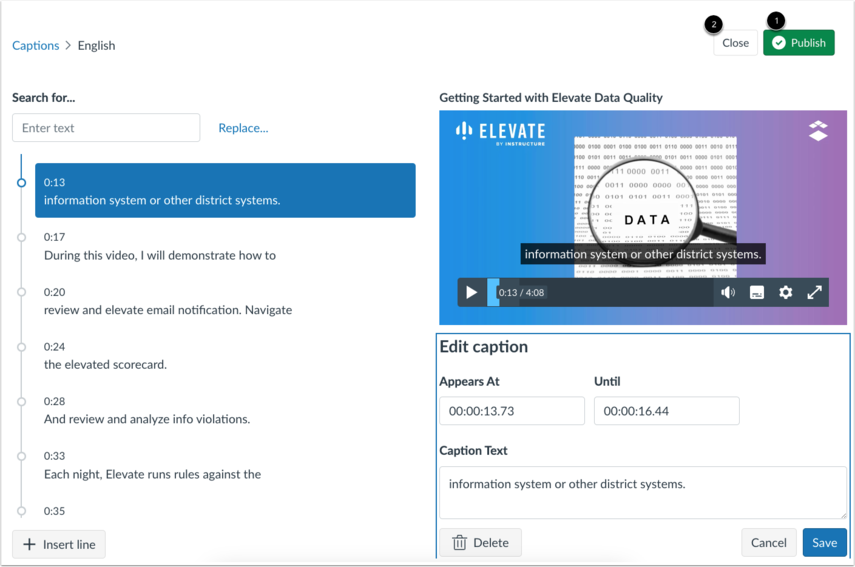
In the Caption Editor, review the auto-generated text and make corrections as needed. This includes punctuation, capitalization, speaker wording, and subject-specific vocabulary.
For more support, review how to edit a caption file in the Canvas Studio Caption Editor.
- Edit the caption text.
- Select Publish to make captions available with the media.
- Select Close if you want to leave the editor without publishing.
Step 7: Manage Published Captions
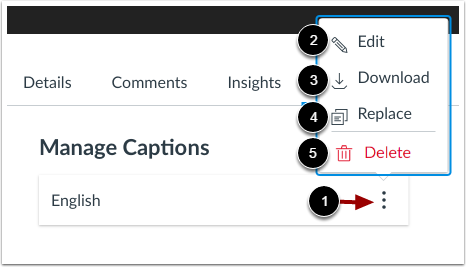
After captions are published, open the Options menu to manage the file. From there, you can edit, download, replace, or delete the caption file.
Canvas Studio caption files download as SRT files, which can then be opened and revised in other programs.
Downloading the SRT File and Preparing a Transcript
- Download the SRT file from the published caption options.
- Locate the downloaded file on your computer.
- Open the file in a text editor such as Notepad.
- Copy the caption text into a word processor or editing tool.
- Correct spelling, punctuation, formatting, and line breaks.
- Give the transcript a clear title using the appropriate document heading style.
- Place the transcript below the audio item in Canvas so students can access it easily.
Instructor Note
When preparing a transcript file in Word or another document editor, use a clear document title and consistent heading structure so students can navigate the transcript efficiently.
Accessibility Check
- Review auto-generated captions before publishing.
- Correct punctuation, spelling, and technical terminology.
- Ensure captions are published so they display with the media.
- Provide a readable transcript in addition to captions when appropriate.
- Place the transcript near the related audio file in Canvas.
- Use meaningful link text for any supporting resources.
Chapter Summary
Canvas Studio makes it possible to request captions for MP3 and other media files, review the resulting caption file, publish captions, and download an SRT file for transcript preparation. Because machine-generated captions are imperfect, careful editing is an essential step in creating accessible course materials.
Key Takeaways
- Canvas Studio can auto-generate captions for media files.
- Auto-generated captions must be reviewed and corrected.
- Captions must be published before they appear with media.
- Published caption files can be downloaded as SRT files.
- Edited transcripts should be shared in a student-friendly location near the media.
Review Questions
- Why should Canvas Studio captions be reviewed before publishing?
- What is the purpose of the Captions tab in Studio?
- What file format is used when downloading captions from Canvas Studio?
- What types of edits are commonly needed in auto-generated captions?
- Where should a transcript be placed in Canvas for student access?
Practice Activity
Choose an audio file in Canvas Studio and request captions for it. After the captions are generated, review and publish them, then download the SRT file. Edit the transcript into a readable document and identify where you would place it in a Canvas course page for easy student access.
Further Reading
- How to use the Canvas Studio caption request tool, Canvas LMS Community
- How to edit a caption file in Canvas Studio, Canvas LMS Community
- How to download media transcripts in Canvas Studio, Canvas LMS Community
Licenses and Attribution
CC Licensed Content, Original
This educational material includes AI-generated content from ChatGPT by OpenAI. The original content created by Josh Hill, Neida Abraham, and Emiliana Olavarrieta from Hillsborough College is licensed under a Creative Commons Attribution-NonCommercial 4.0 International License (CC BY-NC 4.0).
All images in this textbook generated with DALL·E are licensed under the terms provided by OpenAI, allowing their use, modification, and distribution with appropriate attribution.
Third-Party Platforms and Interfaces
This chapter includes screenshots of third-party software and web interfaces, including Canvas Studio, for purposes of instruction, commentary, and accessibility training. These screenshots are used to document a workflow and remain subject to the terms, policies, and rights associated with the respective platforms.
Standards and Guidance
This chapter discusses auto-generated captions, caption editing, transcript download, and transcript preparation in Canvas Studio and refers readers to official Canvas Studio guidance for captioning workflows.
References
- Canvas LMS Community. (n.d.). How do I use the Canvas Studio caption request tool to add captions to media in my Studio account?
- Canvas LMS Community. (n.d.). How do I use the Caption Editor to edit a caption file?
- Canvas LMS Community. (n.d.). How do I download media files or media transcript files in Canvas Studio?
- Canvas LMS Community. (n.d.). How do I upload a caption file to Canvas Studio media?
- OpenAI. (2022, November 30). Introducing ChatGPT.
Other Licensed Content:
Audio to Text via Canvas Studio
Professor Gregory Beyrer
License: Standard YouTube License.