Making Multimedia Accessible
Making Multimedia Accessible
Accessible multimedia helps ensure that all students can engage with course materials, including video, audio, images, and interactive activities. When multimedia is designed with accessibility in mind, more learners can perceive, operate, and understand course content. This chapter introduces practical strategies for creating accessible multimedia for college courses.
This chapter explains how to make video, audio, images, and interactive materials more accessible for college learners. It introduces core practices such as captioning, transcripts, audio descriptions, alternative text, keyboard access, and accessibility testing before publication.
Learning Objectives
- Identify the main accessibility requirements for video, audio, images, and interactive multimedia.
- Explain when captions, transcripts, and audio descriptions are needed.
- Write appropriate alternative text for meaningful images and use empty alternative text for decorative images.
- Evaluate H5P and other interactive media for keyboard and screen reader accessibility.
- Apply accessibility review practices before publishing multimedia in a course.
- Explain the purpose of Able Player in accessible media design.
- Embed a captioned video using Able Player in Pressbooks.
- Apply CSS fixes to resolve accessibility contrast issues.
- Understand how Canvas Studio can support more accessible video use in Canvas LMS.
Key Terms
- Alternative Text
- A short text description that communicates the purpose or meaning of an image for people who cannot see it.
- Audio Description
- Additional narration that explains important visual information in a video when that information is not otherwise available through dialogue or sound.
- Captions
- Text synchronized with video that represents spoken dialogue and relevant audio information.
- Decorative Image
- An image that does not add instructional meaning and should use empty alternative text.
- Transcript
- A text version of spoken content and relevant audio details from a video or audio recording.
- Rolling Transcript
- A time-synced text version of spoken audio or video that automatically scrolls and highlights words as they are spoken. Unlike a static transcript, it updates in real time during playback, allowing users to read along as they listen.
Why Accessible Multimedia Matters
Multimedia can improve engagement and explain complex ideas, but it can also create barriers when access needs are overlooked. Students may need captions to follow spoken information, transcripts to review content, audio descriptions to understand key visuals, or keyboard access to complete an activity.
Designing for accessibility from the start supports a wider range of learners and reduces the need for last-minute remediation.
Video Accessibility Requirements (WCAG 2.1 Level AA)
To ensure videos are accessible and meet WCAG 2.1 Level AA, several essential requirements must be met. These requirements support users who are deaf or hard of hearing, blind or low vision, or who rely on keyboard navigation.
1. Core Requirements (Non-Negotiables)
For a video to meet Level AA, the following three elements are required:
- Captions (Success Criterion 1.2.2)
- Accurate
- Synchronized with the audio
- Inclusive of speaker identification and meaningful sound effects
- Audio Description (Success Criterion 1.2.5)
Audio description is required for prerecorded video content. This provides narration of essential visual information (e.g., on-screen text, actions, gestures, or scene changes) for users who are blind or have low vision. - Keyboard Accessibility (No Keyboard Traps)
- Play, pause, and control the video
- Navigate the video player using only a keyboard, without becoming “trapped” in the interface
2. Visual and Interaction Standards
Accessibility also applies to how video content is presented and controlled:
| Feature | Requirement |
|---|---|
| Color Contrast | Text displayed in the video (excluding logos) must have a contrast ratio of at least 4.5:1. |
| Flashing Content | Content must not flash more than three times per second to reduce the risk of seizures. |
| Playback Control | If a video plays automatically and lasts longer than 5 seconds, users must be able to pause, stop, or control playback. |
3. Common Issues and Compliance Risks
In practice, some issues are more critical than others. While the goal is full compliance, the following distinctions are helpful:
- Minor Caption Errors
Small typos may be considered minor issues. However, errors that change meaning (e.g., “now” vs. “not”) can result in a failure. - Missing Audio Description
This is a significant compliance failure. If essential visual information is not available to users who cannot see the video, the content does not meet Level AA. - Inaccessible Video Player
Even if the video itself is accessible, an inaccessible player (e.g., unusable with a keyboard or screen reader) makes the entire experience inaccessible.
4. A Practical Perspective on Accessibility
WCAG guidelines aim to ensure equitable access, not just technical compliance. The key question to consider is:
Does this video allow all users to access and understand the content equally?
Barriers that prevent comprehension or interaction represent the highest accessibility risks.
5. Practical Tip: Integrated Description
One effective strategy for reducing the need for separate audio description tracks is integrated description. This approach involves speakers naturally describing important visual elements as part of the narration.
For example:
- Instead of showing a chart silently, the speaker explains the key trends aloud.
Video Accessibility Summary
To meet WCAG 2.1 Level AA, videos must include accurate captions, audio description of important visual content, and full keyboard accessibility. Additional requirements—such as sufficient color contrast, avoiding flashing content, and providing playback controls—ensure usability for a wide range of users. While minor errors may occur, missing audio description or an inaccessible video player represents a significant compliance failure. Ultimately, the goal is to provide equal access so that all users can perceive, understand, and interact with video content effectively.
Applying Video Accessibility in Course Design
Accessible video supports learners who are deaf or hard of hearing, blind or have low vision, use screen readers, study in distracting environments, or benefit from multiple ways to access information.
Captions
All instructional videos should include synchronized captions that are accurate, properly timed, and clear. Captions should reflect meaningful spoken content and identify speakers when needed.
Automatic captions may be used as a starting point, but they should be reviewed and corrected before publication.
Transcripts
Provide a complete text transcript for video and audio materials. A transcript helps students review material, search for key ideas, and access content when video playback is not practical.
- Include speaker identification when relevant
- Correct punctuation and grammar
- Ensure readability for screen reader users
- Match the spoken content accurately
Audio Descriptions
If important visual information is not explained through narration, provide audio descriptions or revise the narration so visual content is also communicated in words.
Using Able Player for Accessible Video in Pressbooks and Canvas
Able Player is an accessible media player designed to support captions, transcripts, keyboard navigation, and screen reader compatibility.
This tool allows you to add accurate, synchronized captions to YouTube videos that you do not own. It is widely used in Pressbooks and can also support more inclusive media workflows when video content is shared in learning environments.
You can process video captions using ChatGPT to generate properly formatted VTT files, which can then be hosted on GitHub. From there, ChatGPT can also assist in creating the necessary embed code (shortcode) to integrate the captioned video into HTML.
Why Use Able Player?
- Provides synchronized captions and interactive transcripts
- Supports full keyboard navigation
- Works with screen readers and assistive technologies
- Allows users to control playback speed and display preferences
- Improves compliance with WCAG 2.1 Level AA accessibility standards
Using Able Player in Pressbooks
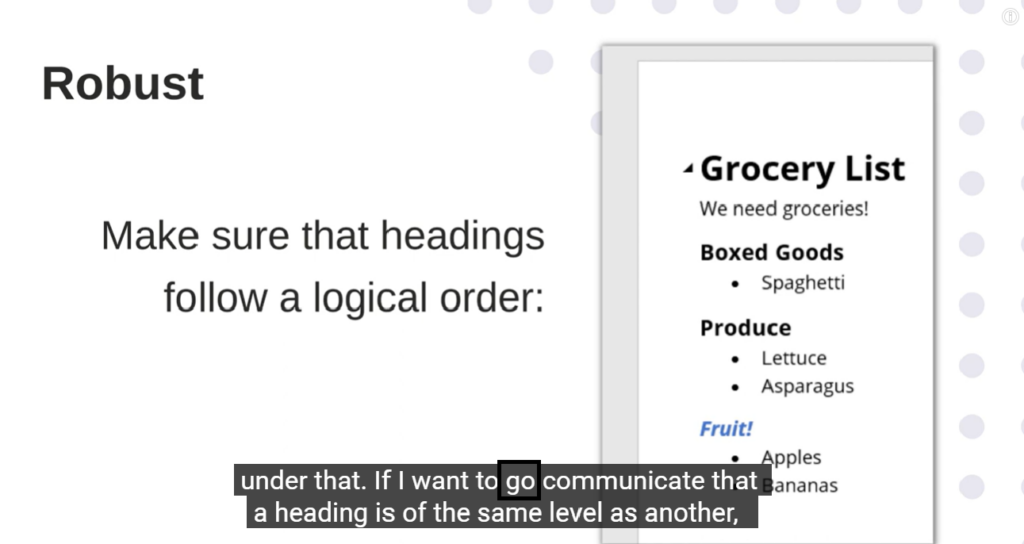
In Pressbooks, Able Player can be embedded using a shortcode. This allows you to include captions and a transcript for your video. The example video in our chapter Open Educational Resources, AI, & Digital Accessibility demonstrates Able Player effectively. In that video, the word Go appeared incorrectly in the original captions at 5:37, so the VTT file was edited to remove the error.
Step-by-Step: Embedding an Accessible Video
- Locate a YouTube video appropriate for your content.
- Ensure captions are available or create a caption file in VTT format.
- Insert the Able Player shortcode into your chapter.
- Link the caption file and transcript container.
- Provide a cleaned and readable transcript below the player.
Fixing Able Player Contrast Issues in Pressbooks
Some Pressbooks themes may display Able Player controls with insufficient color contrast. Accessibility checkers may flag these issues even when your content is correct. You can resolve this by applying a global CSS fix.
Where to Add the CSS
- Go to Appearance → Custom Styles.
- Scroll to Your Web Styles.
- Paste the CSS below.
- Save your changes.
.able .able-controller,
.able .able-status-bar {
  background-color: #222222 !important;
}

.able .able-controller button,
.able .able-controller [role="button"],
.able .able-controller svg,
.able .able-controller svg path {
  color: #ffffff !important;
  fill: #ffffff !important;
}

.able .able-status,
.able .able-timer,
.able .able-speed,
.able .able-elapsedTime,
.able .able-duration {
  color: #d0d0d0 !important;
}

.able .able-controller button:hover,
.able .able-controller button:focus {
  background-color: #444444 !important;
  outline: 2px solid #ffffff;
  outline-offset: 2px;
}
Accessibility Check
Accessibility tools may flag contrast issues in embedded media players. In Pressbooks, these can often be resolved using global CSS. Always ensure captions and transcripts are accurate, even when interface elements are controlled by plugins.
Using Able Player in Canvas LMS
Canvas does not include Able Player by default, but you can sometimes embed it using HTML if your institution supports external scripts or related tools.
Options for Canvas Integration
- Embed Able Player using HTML in the Rich Content Editor, if allowed.
- Host Able Player files on a web server and reference them.
- Use third-party tools that support accessible video playback.
Alternative for Canvas
- Use Canvas Studio with corrected captions.
- Enable Interactive Rolling Transcript for videos when available.
- Provide a downloadable transcript when rolling transcripts are not available.
- Embed YouTube videos with manually edited captions when possible.
Adding Transcripts to YouTube Videos in Canvas Studio
Canvas Studio provides another practical option for improving access to video content. In Canvas Studio, you can upload caption files in SRT or VTT format to media, including some videos you do not own. This makes Canvas Studio useful when you want to improve a YouTube video’s accessibility in your course without rehosting the media yourself.
For training documentation, see How do I create captions for media in Canvas Studio?
When to Use This Option
- You are embedding or sharing a YouTube video through Canvas Studio.
- The existing automatic captions are inaccurate or incomplete.
- You have created or cleaned a caption file in SRT or VTT format.
- You want students to access more accurate text support while viewing the video in Canvas.
Step-by-Step: Uploading a Transcript or Caption File in Canvas Studio
- Open Canvas Studio from your Canvas course or global navigation.
- Select the video you want to update.
- Open the media details or caption settings for that video.
- Choose the option to upload captions.
- Select your prepared SRT or VTT file from your computer.
- Upload the file and confirm that the correct language is selected.
- Preview the video to verify timing, punctuation, line breaks, and speaker clarity.
- Revise the file and re-upload it if needed.
Interactive Rolling Transcript in Canvas Studio
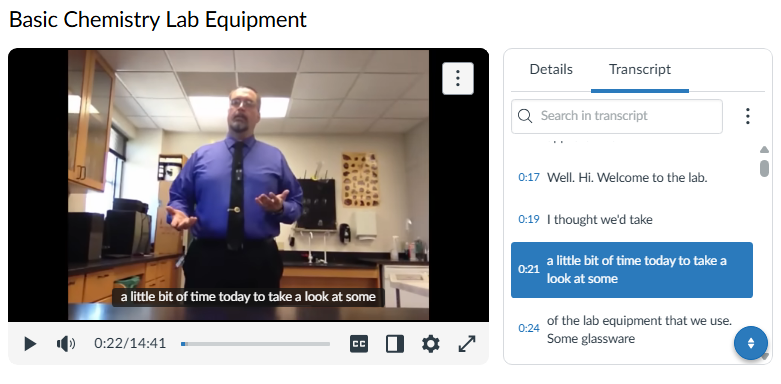
Canvas Studio allows instructors to provide an interactive rolling transcript for their videos. The transcript dynamically syncs with the media, highlighting spoken text in real time as the video or audio plays. This allows students to follow along visually and auditorily at the same time, improving comprehension, focus, and retention—especially for learners who are deaf or hard of hearing. This feature is only functional when captions are available in Canvas Studio. It can also work for third-party YouTube videos if a caption file has been uploaded.
For training documentation, see How to manage video options in the Rich Content Editor.
Accessibility Check
Uploading a caption file is an important step, but it does not replace quality review. Check that captions are synchronized, correctly punctuated, and clear to read. When possible, also provide a clean transcript below the video so learners can review the content in a text-based format.
Best Practices for Transcript and Caption Quality
Correct spelling, punctuation, and capitalization before uploading.
Identify speakers when more than one person is talking.
Include meaningful non-speech audio when it supports understanding.
Break long lines into readable caption segments.
Review the finished captions in Canvas Studio rather than assuming the file imported perfectly.
Why This Matters
Students use transcripts and captions in different ways. Some rely on them for full access, while others use them to review, study, search for terms, or follow along in noisy or quiet environments. Adding accurate caption files in Canvas Studio helps make video-based instruction more inclusive and easier to use.
Instructor Tip
If you start with an automatically generated transcript, treat it as a draft. Clean the text first, save it as an SRT or VTT file, upload it to Canvas Studio, and then watch the video once more to verify that the captions display correctly.
Accessible Images

Closed captioning icon used to indicate that captions are available for video content. Closed captioning symbol, via Wikimedia Commons, Public Domain.
- Write descriptive alternative text for meaningful images.
- Use empty alternative text (
alt="") for decorative images. - Provide nearby explanation for charts or diagrams.
- Avoid images of text when readable text can be used.
H5P Interactive Content
- Use descriptive labels for buttons and controls.
- Ensure activities can be completed using only a keyboard.
- Provide alternative text for images used in H5P.
- Avoid interactions that rely only on color or dragging.
- Test activities with keyboard navigation and screen readers.
Audio Content Guidelines
- Provide a complete transcript.
- Ensure audio clarity with minimal background noise.
- Identify speakers when multiple people are speaking.
- Use descriptive file names and metadata.
- Organize audio content logically.
Accessibility Check Before Publishing
- Confirm heading levels are logical.
- Ensure links use descriptive text.
- Review captions for accuracy.
- Confirm transcripts are complete.
- Test interactive content with a keyboard.
- Verify that images have appropriate alt text.
Chapter Summary
Accessible multimedia is essential for inclusive course design. Videos should include captions and transcripts, important visuals should be described, images need meaningful alternative text, and interactive content should support keyboard access and assistive technologies.
Key Takeaways
- Able Player enhances accessibility by supporting captions, transcripts, and keyboard navigation.
- Canvas Studio can improve access to shared video by allowing caption file uploads.
- Alternative text should communicate the instructional purpose of images.
- Interactive multimedia must support keyboard navigation.
- Accessibility checks should occur before multimedia is published.
Review Questions
- Why are automatic captions alone not sufficient for accessibility?
- When should an image use descriptive alt text versus empty alt text?
- What is the difference between captions and transcripts?
- Why is keyboard access important for interactive tools?
- How can Canvas Studio improve the accessibility of video content?
Applied Activity
Select one multimedia item from a course you teach or support. Review it for accessibility. Revise at least two of the following:
- captions
- transcript
- alternative text
- heading structure
- keyboard access
- link text
Write a short reflection explaining how the changes improved accessibility.
Further Reading
Licenses and Attribution
CC Licensed Content, Original
This educational material includes AI-generated content from ChatGPT by OpenAI. The original content created by Josh Hill, Neida Abraham, and Emiliana Olavarrieta from Hillsborough College is licensed under a Creative Commons Attribution-NonCommercial 4.0 International License (CC BY-NC 4.0).
All images in this textbook generated with DALL·E are licensed under the terms provided by OpenAI.
Other Licensed Content
Closed captioning symbol, via Wikimedia Commons, Public Domain.
Screenshot of a video titled Basic Chemistry Lab Equipment showing an instructor in a laboratory with transcript panel visible. Source: Canvas Studio. Used for educational purposes.
Video Caption Generation and Interactive Rolling Transcripts for Canvas
Instructure Community
All rights reserved.
Web Accessibility Perspectives: Video Captions
W3C Web Accessibility Initiative (WAI)
License: Standard YouTube License.